Few things are more stressful than pressing the power button and watching your computer refuse to start. A frozen boot screen, an endless spinning circle, a sudden crash loop, or a cryptic stop code can make it feel like your files, your work and your entire week have vanished.
In the vast majority of cases, they have not. Windows 11 ships with a complete repair toolkit built into the machine — Windows 11 Advanced Recovery — and most boot failures are fixed by a small number of well-chosen steps performed in the right order.
This guide is the long version. It explains what each tool actually does under the hood, gives you the exact clicks and commands for each one, and then walks through six real-world failure scenarios from start to finish, so you can see how a technician reasons from a symptom to a fix instead of guessing.
| How to use this guide If your PC is down right now: jump to “The 60-Second Triage” and then to the scenario that matches your symptom. If you are studying or building a support workflow: read straight through — the tool reference and the repair order are designed to be learned once and reused forever. |
What Is Windows 11 Advanced Recovery?
Windows 11 Advanced Recovery is a set of built-in diagnostic and repair tools that live inside the Windows Recovery Environment (WinRE) — a lightweight, self-contained mini operating system that runs independently of your main Windows installation.
That independence is the whole point. Because WinRE boots from its own small partition using its own copy of the Windows kernel and drivers, it can repair a Windows installation that is too damaged to start, in the same way a mechanic can work on an engine that will not turn over.
Rather than reinstalling Windows the moment something goes wrong, Advanced Recovery lets you diagnose the root cause first — corrupted system files, a bad update, damaged boot configuration data, a driver conflict, a failing disk, or a firmware setting that changed — and then repair only what is broken.
What Advanced Recovery can fix
- Damaged or missing boot files and a corrupted Boot Configuration Data (BCD) store.
- A bad Windows update, driver, or application that breaks startup.
- Corrupted system files and a damaged component store.
- File system errors and bad sectors on the system drive.
- Misconfigured firmware settings such as boot order, Secure Boot, or SATA controller mode.
- A system state that was healthy yesterday and is broken today (via System Restore).
What it cannot fix
- Genuine hardware failure — a dying SSD, failing RAM, a bad motherboard, or an overheating CPU. Recovery tools will appear to run and then fail or hang.
- A forgotten Microsoft account password (WinRE is not a password bypass tool).
- A missing BitLocker recovery key. Without the key, an encrypted drive cannot be repaired or read.
- Files you never backed up and then erased with “Remove everything”.
How the Windows Recovery Environment (WinRE) Actually Works
Understanding the mechanics makes troubleshooting far less mysterious. On a standard Windows 11 installation, your drive is divided into several partitions, and only one of them is the C: drive you normally see.
| Partition | Typical size | What it holds |
| EFI System Partition (ESP) | 100–300 MB | The Windows Boot Manager and boot files the firmware loads first. FAT32 formatted. |
| Microsoft Reserved (MSR) | 16–128 MB | Reserved space used by Windows for disk management. No files visible. |
| Windows (C:) | Remainder of disk | Windows itself, your programs and your personal files. |
| Windows Recovery (WinRE) | 500 MB–1 GB | Winre.wim — the recovery image that boots the Advanced Recovery tools. |
How Windows decides to launch WinRE
Windows 11 counts failed boot attempts. If startup fails twice in a row, the third boot is automatically diverted into the Recovery Environment, where you are shown the “Automatic Repair” or “Recovery” screen. This is why deliberately interrupting boot three times is a reliable manual trigger — you are simply forcing that counter to trip.
| Important detail most guides skip Inside WinRE, drive letters are reassigned. Your Windows partition is frequently mounted as D: while X: is the recovery environment’s own RAM drive. Running a repair command against C: without checking first is the single most common mistake people make in recovery mode — and it is why some repairs “succeed” while changing nothing. |
The 60-Second Triage: Before You Touch Anything
Work through this quick checklist first. It costs a minute and regularly saves an hour.
- Photograph the error. Use your phone to capture the exact stop code, error text or QR screen. “INACCESSIBLE_BOOT_DEVICE” and “CRITICAL_PROCESS_DIED” lead to completely different fixes.
- Ask what changed. A Windows update last night? A new graphics driver? A BIOS update? A new SSD? A power cut mid-update? The last change is the prime suspect roughly 80% of the time.
- Remove all external devices. Unplug USB drives, external hard disks, SD cards, docking stations and printers. A bootable USB stick left in a port is a startlingly common cause of “Windows won’t boot”.
- Locate your BitLocker recovery key now, not later. Sign in at account.microsoft.com/devices/recoverykey from your phone or another PC. Many recovery actions will prompt for it, and work devices almost always require it.
- Check the obvious hardware. Is the power adapter connected? Does the drive appear in the firmware screen? A drive that has disappeared from BIOS/UEFI is a hardware problem, not a Windows problem.
- Decide how valuable the unbacked-up data is. If it is irreplaceable, rescue the files through Command Prompt before running any repair (the method is in the Command Prompt section below).
When Do You Need Windows 11 Advanced Recovery?
- Windows will not boot past the logo screen, or boots to a black, blue or green screen.
- The PC restarts in a loop and never reaches the desktop or the sign-in screen.
- A recent Windows update caused instability, crashes or a failed boot.
- You see a stop code such as INACCESSIBLE_BOOT_DEVICE, CRITICAL_PROCESS_DIED or UNMOUNTABLE_BOOT_VOLUME.
- You see a boot manager message such as “Your PC/Device needs to be repaired” with error 0xc0000225 or 0xc000000f.
- System files appear corrupted, or apps and drivers behave erratically after an update.
- You need to roll the machine back to a previous stable state without losing personal files.
- Standard in-Windows troubleshooting is impossible because the operating system will not load at all.
How to Access Windows 11 Advanced Recovery (Five Methods)
Pick the first method on this list that your PC is still capable of. They all land in the same place.
Method 1 — From Settings (the PC still boots)
- Press Win + I to open Settings.
- Go to System > Recovery.
- Next to “Advanced startup”, click Restart now, then confirm with Restart now again.
- Save your open work first — this is a real restart.
Method 2 — Shift + Restart (fastest, works from the sign-in screen)
- From the desktop or the sign-in screen, click the Power icon.
- Hold the Shift key and click Restart, keeping Shift held until the blue “Choose an option” screen appears.
- This works even when you cannot sign in, which makes it the go-to method for password or profile problems.
Method 3 — The three-interrupt trigger (Windows will not start at all)
Use this when the machine never reaches a usable screen. You are deliberately failing the boot three times so Windows diverts itself into recovery.
- Power on the PC.
- The moment the manufacturer logo or the Windows logo appears, press and hold the power button for about 10 seconds until the machine switches off.
- Repeat that twice more.
- On the third power-on, let it run. You should see “Preparing Automatic Repair”, then the recovery screen. Choose Advanced options.
| Use this method sparingly Hard power-offs during boot carry a small risk of further file system damage, especially on a drive that is already unhealthy. Three attempts is the intended trigger — if the recovery screen has not appeared by then, move to Method 4 instead of repeating it ten times. |
Method 4 — From a Windows 11 installation USB (the most reliable)
If the WinRE partition itself is damaged or missing, the on-disk recovery tools will not load. A bootable USB gives you the same toolkit from external media, and it is the method professional technicians reach for first.
- On any working PC, download the Media Creation Tool or a Windows 11 ISO from microsoft.com and write it to an 8 GB or larger USB drive (Media Creation Tool or Rufus).
- Insert the USB into the broken PC and boot from it using the one-time boot menu — usually F12, F10, F9 or Esc at power-on, depending on the manufacturer.
- At the “Windows Setup” language screen, click Next.
- On the next screen, click “Repair your computer” in the bottom-left corner — not Install now.
- You are now in the same Troubleshoot > Advanced options menu.
Method 5 — The one-line command (for admins and scripts)
From an elevated Command Prompt, PowerShell or the Run dialog inside a working Windows session:
shutdown /r /o /f /t 0
The /o switch reboots straight into Advanced startup options. Useful when you are supporting a user remotely and want them in WinRE without walking them through menus.
The WinRE menu map
Wherever you entered from, the path is consistent:
Choose an option
> Troubleshoot
> Reset this PC
> Advanced options
> Startup Repair
> Startup Settings
> Command Prompt
> Uninstall Updates
> System Restore
> System Image Recovery
> UEFI Firmware Settings
“Continue” exits to Windows, and “Turn off your PC” shuts down. If you see fewer options than expected, you are probably on a device where the manufacturer or an administrator has restricted the menu, or you entered from installation media before selecting a target OS.
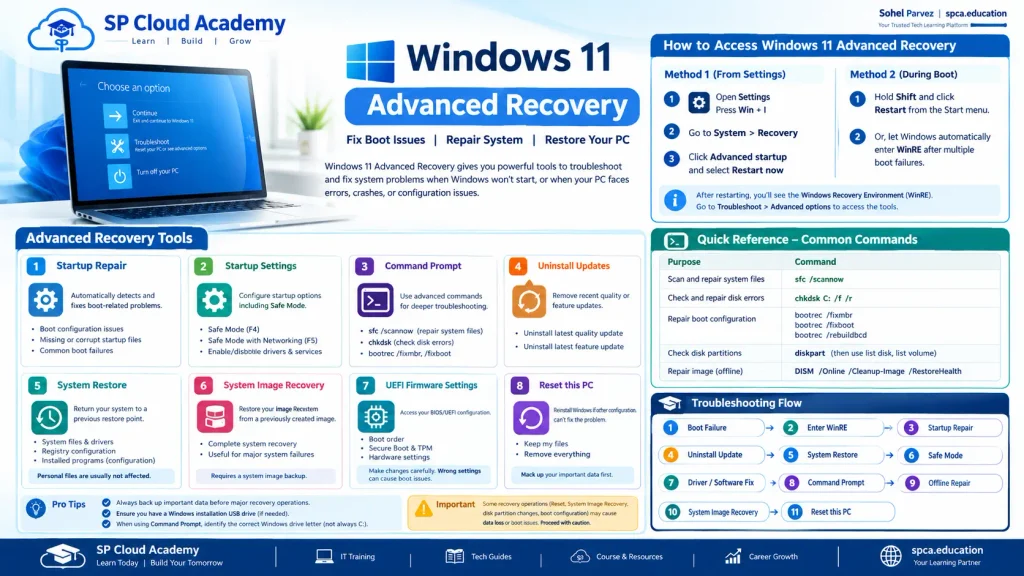
The 8 Essential Advanced Recovery Tools, Explained in Depth
Each tool below follows the same structure: what it does, when to reach for it, exactly how to run it, and what to do when it fails. Learn them in this order and you will have a repeatable method rather than a list of buttons.
1. Startup Repair
What it does: Runs an automated diagnostic pass over the boot chain. It checks the Boot Configuration Data store, the boot sector, the system partition, disk metadata, recent driver changes and the registry hives, and attempts to repair whatever it finds. It writes everything it did to a log file.
Use it when: Windows fails to start and you have no specific diagnosis yet. This is almost always the correct first tool — it is non-destructive and resolves a large share of ordinary boot failures without any input from you.
How to run it:
- Troubleshoot > Advanced options > Startup Repair.
- Select your account and enter its password if prompted (a local or Microsoft account password — not a PIN, which does not exist inside WinRE).
- Wait. It typically runs for 5–20 minutes, and the screen may appear frozen while it works. Do not power off.
- The PC either restarts into Windows, or reports that it could not repair your PC.
If it fails: Do not simply run it again three times — read its log first. From Command Prompt in WinRE:
notepad X:\Windows\System32\LogFiles\Srt\SrtTrail.txt
The log names the specific cause it gave up on — a corrupt file, a missing boot file, a failed disk test, or a particular driver. That single line usually tells you which tool to use next.
2. Startup Settings (the gateway to Safe Mode)
What it does: Restarts the PC into a menu of alternative startup modes, including Safe Mode, Safe Mode with Networking, low-resolution video mode, boot logging, and disabling driver signature enforcement or early-launch anti-malware protection.
Use it when: Windows starts but crashes, freezes, or shows a black screen after login — the classic signature of a bad graphics driver, a broken third-party service, or malware.
How to run it:
- Troubleshoot > Advanced options > Startup Settings > Restart.
- The PC reboots to a numbered list. Press the number or function key for the option you want.
- Press 4 (or F4) for Safe Mode, 5 (F5) for Safe Mode with Networking, 3 (F3) for low-resolution video, 7 (F7) to disable driver signature enforcement.
What Safe Mode proves: Safe Mode loads only Microsoft’s own generic drivers and a minimal set of services. If the PC is stable in Safe Mode, the hardware is fine and the fault is a driver, a startup program or a service. If it crashes in Safe Mode too, suspect the disk, the RAM or deep system corruption.
What to do once you are in Safe Mode:
- Uninstall the most recently installed driver in Device Manager (right-click the device > Properties > Driver > Roll Back Driver, or Uninstall device and tick “Attempt to remove the driver”).
- Open msconfig > Services, tick “Hide all Microsoft services”, then Disable all, to find a misbehaving third-party service by re-enabling them in halves.
- Run a full antivirus scan.
- Uninstall the application that was installed immediately before the problem began.
| Safe Mode tip Windows 11 will not enter Safe Mode with F8 at boot the way Windows 7 did. Startup Settings is the supported route. If you use Safe Mode often, enable the legacy menu from an admin prompt with: bcdedit /set {default} bootmenupolicy legacy |
3. Command Prompt
What it does: Opens a full administrative command line running inside the recovery environment, with access to sfc, chkdsk, bootrec, bcdboot, bcdedit, diskpart, DISM, robocopy and notepad.
Use it when: Automated tools have failed, you need to read a log, you need to copy files off the machine before a reset, or you have a specific diagnosis that calls for a specific repair.
This is the most powerful tool in the set and the one that rewards preparation. It has its own full section below.
4. Uninstall Updates
What it does: Removes either the latest quality update (the monthly cumulative patch) or the latest feature update (a version upgrade such as 23H2 to 24H2), without touching your files.
Use it when: The failure began immediately after Windows Update ran, or the screen mentioned “Undoing changes made to your computer”.
How to run it:
- Troubleshoot > Advanced options > Uninstall Updates.
- Choose “Uninstall latest quality update” first — it is the smaller, safer change and the far more common culprit.
- If that does not help and the problem started right after a version upgrade, choose “Uninstall latest feature update”. This is only possible within the rollback window (normally 10 days after the upgrade).
- Confirm, wait for the rollback, and let the PC restart.
Afterwards: Pause updates for a week or two in Settings > Windows Update so the same patch does not reinstall itself before Microsoft ships a fix.
5. System Restore
What it does: Rewinds system files, drivers, installed programs and registry settings to a saved restore point. Your documents, photos and other personal files are left alone.
Use it when: The machine was healthy recently and something you installed or changed broke it. It is the single most effective non-destructive fix available — when a restore point exists.
How to run it:
- Troubleshoot > Advanced options > System Restore.
- Select your account and enter its password.
- Pick a restore point dated before the problem started. Tick “Show more restore points” if the list looks short.
- Click “Scan for affected programs” before you continue — it lists exactly which applications and drivers will be removed or restored. This turns a leap of faith into an informed decision.
- Confirm and let it run. Do not interrupt it; an interrupted restore can leave the system in a worse state than it started.
If there are no restore points: System Protection was switched off — which is the default on many clean Windows 11 installations. Once the PC is healthy again, turn it on: search “Create a restore point” > select the C: drive > Configure > Turn on system protection > allocate around 5–10% of the disk. It costs a little space and pays for itself the first time you need it.
6. System Image Recovery
What it does: Restores the entire drive from a previously created full system image — an exact block-level snapshot of Windows, programs, settings and files as they were on the day the image was made.
Use it when: The installation is badly damaged, you have a recent image, and you would rather return to a known-good machine than spend hours repairing this one.
How to run it:
- Connect the external drive or network location holding the image before you start.
- Troubleshoot > Advanced options > System Image Recovery.
- Choose the latest available image, or “Select a system image” to browse.
- Review the disks that will be overwritten with great care, then confirm.
| This one erases System Image Recovery replaces the contents of the target disk entirely. Anything created or saved since the image was made is lost. Copy your recent files to a USB drive first — the Command Prompt section shows how to do that even when Windows will not start. |
7. UEFI Firmware Settings
What it does: Reboots directly into your PC’s UEFI/BIOS setup, where boot order, Secure Boot, TPM, virtualisation, fan curves and storage controller mode are configured.
Use it when: The firmware cannot find a bootable device, the drive vanished from the boot list, Secure Boot or TPM settings changed, or you suspect the SATA mode was switched.
What to check while you are in there:
- Boot order — is “Windows Boot Manager” or your system SSD first? Is a USB stick or a dead secondary drive ahead of it?
- Drive detection — does the storage or main page list your SSD/NVMe at all? If not, this is a hardware or cabling issue, and no Windows tool can help.
- SATA/NVMe mode — AHCI is correct for the overwhelming majority of systems. If it was switched to RAID or IDE, Windows will typically fail with INACCESSIBLE_BOOT_DEVICE. Switch it back to what it was.
- Secure Boot and TPM — required for Windows 11 and for BitLocker to release its key automatically. A firmware update often resets these.
- Date and time — a wildly wrong clock (a sign of a dead CMOS battery) breaks certificate validation and can block boot.
Change one setting at a time, save, and test. Note the original value before you touch it.
8. Reset This PC
What it does: Reinstalls Windows 11 from either a local recovery image or a fresh download from Microsoft’s servers, with two data options.
| Option | Personal files | Apps & settings | Best for |
| Keep my files | Kept | All apps removed, settings reset | A broken but non-malicious system where you want to avoid restoring data |
| Remove everything | Erased | Erased | Malware, selling or handing on the PC, or a genuinely clean start |
| Cloud download | — | — | A fresh, up-to-date image; needs ~4 GB of data and a wired or stable Wi-Fi connection |
| Local reinstall | — | — | No internet needed, but fails if the local recovery image is itself corrupt |
How to run it: Troubleshoot > Reset this PC > choose your data option > choose Cloud download or Local reinstall > Reset. Expect 30 minutes to two hours, with several restarts. Keep a laptop plugged into mains power throughout.
Reality check: “Keep my files” keeps documents in your user profile, but it removes every installed application and most settings. Budget time for reinstalling software, drivers, printers and licence keys. And if the underlying fault is a failing disk, a reset will fail partway through or produce a machine that breaks again within days.
| Good to Know Startup Repair, Startup Settings, Uninstall Updates and System Restore do not touch your personal files. System Image Recovery and Reset This PC with “Remove everything” will erase data. When in doubt, back up first — and if the PC will not boot, use the Command Prompt rescue method below. |
Command Prompt Deep Dive: The Commands That Actually Matter
Step 0 — Always identify your drive letters first
Nothing else in this section works correctly until you do this. Open Troubleshoot > Advanced options > Command Prompt and run:
diskpart
list disk
list volume
exit
Read the volume list carefully. Look for the large NTFS volume that holds Windows — it will often be labelled and is usually the biggest. Confirm your guess:
dir D:\Windows
dir E:\Windows
Whichever letter returns a real Windows folder is your Windows volume. Note it down. In the commands below, replace D: with whatever you found. X: is the recovery environment itself and is not your installation.
Rescue your files before you repair anything
If there is unbacked-up data on the machine, copy it out now. Plug in a USB drive, confirm its letter with diskpart, and use robocopy:
robocopy D:\Users\YourName\Documents F:\Rescue\Documents /E /R:1 /W:1 /XJ
robocopy D:\Users\YourName\Desktop F:\Rescue\Desktop /E /R:1 /W:1 /XJ
robocopy D:\Users\YourName\Pictures F:\Rescue\Pictures /E /R:1 /W:1 /XJ
/E copies subfolders including empty ones, /R:1 and /W:1 stop it retrying unreadable files forever, and /XJ avoids junction-point loops. If you prefer a graphical view, type notepad, then File > Open, set the file type filter to “All Files”, and browse the drive — you can copy and paste from that dialog.
System File Checker (sfc) — offline syntax
Inside WinRE, sfc /scannow alone will check the recovery image, not your Windows installation. You must point it at the right target:
sfc /scannow /offbootdir=D:\ /offwindir=D:\Windows
This scans protected system files and replaces corrupt ones from a cached copy. Results are written to D:\Windows\Logs\CBS\CBS.log. If sfc reports that it found corrupt files but could not fix them, the component store it repairs from is damaged — repair that with DISM, then run sfc again.
DISM — repairing the component store offline
DISM /Online refers to the running operating system, which inside WinRE is not your Windows installation. Use the offline form with an image as the repair source, taken from a matching Windows 11 ISO or installation USB:
dism /Image:D:\ /Cleanup-Image /ScanHealth
dism /Image:D:\ /Cleanup-Image /CheckHealth
dism /Image:D:\ /Cleanup-Image /RestoreHealth /Source:wim:G:\sources\install.wim:1 /LimitAccess
G: is your mounted ISO or installation USB. If the media contains install.esd rather than install.wim, substitute esd:G:\sources\install.esd:1. The build and edition of the source must match the installed one. Run sfc again afterwards.
chkdsk — file system and disk surface
chkdsk D: /f /r
/f fixes file system errors; /r additionally locates bad sectors and recovers readable information, which is why it can take several hours on a large or failing drive. On a healthy SSD, use /f alone — the surface scan provides little benefit and adds wear. If chkdsk reports large numbers of bad sectors, stop repairing and start copying data off: the drive is dying.
Repairing the boot configuration (bootrec and bcdboot)
Run these in order when the failure is a boot manager error rather than a Windows error:
bootrec /fixmbr
bootrec /fixboot
bootrec /scanos
bootrec /rebuildbcd
| Command | What it does |
| bootrec /fixmbr | Writes a clean Master Boot Record. Relevant on legacy BIOS/MBR systems; harmless on UEFI. |
| bootrec /fixboot | Writes a new boot sector to the system partition. Frequently returns “Access is denied” on UEFI systems — see the workaround below. |
| bootrec /scanos | Scans all disks for Windows installations that are missing from the BCD store. |
| bootrec /rebuildbcd | Rebuilds the Boot Configuration Data store and offers to add any installation it found. |
When bootrec /fixboot returns “Access is denied” on a UEFI system — which is common — rebuild the EFI boot files directly instead. Assign a letter to the EFI System Partition, then let bcdboot write fresh boot files:
diskpart
list volume (find the ~100 MB FAT32 volume)
select volume 3 (use the number you just found)
assign letter=S
exit
bcdboot D:\Windows /s S: /f UEFI
This recreates the Windows Boot Manager entries on the EFI partition and points them at the Windows installation on D:. It resolves a large proportion of 0xc0000225 and “Boot Device Not Found” cases. Restart and remove the installation media.
| Caution with diskpart diskpart can erase partitions instantly and without a confirmation prompt. Use only list, select, assign and exit while troubleshooting. Never type clean, delete or format unless you have made a conscious, backed-up decision to wipe that disk. |
Rolling back a bad driver from the command line
If you know which driver broke the system, you can remove it offline. List the third-party drivers in the installation, then delete the offending one:
dism /Image:D:\ /Get-Drivers /Format:Table
dism /Image:D:\ /Remove-Driver /Driver:oem12.inf
Match the published name (oem12.inf) to the original file name and provider in the table output. This is the standard fix when a storage or graphics driver causes a boot loop and Safe Mode is unavailable.
Disabling automatic restart to read a stop code
If the PC reboots too quickly to read the blue screen, disable the automatic restart so the error stays on screen:
bcdedit /store D:\Boot\BCD /set {default} recoveryenabled No
Or use Startup Settings > option 9, “Disable automatic restart after failure”, which achieves the same thing without editing the store.
Quick reference: the commands worth memorising
| Purpose | Command |
| Identify disks and volumes | diskpart > list volume |
| Confirm the Windows drive letter | dir D:\Windows |
| Scan and repair system files (offline) | sfc /scannow /offbootdir=D:\ /offwindir=D:\Windows |
| Repair the component store (offline) | dism /Image:D:\ /Cleanup-Image /RestoreHealth |
| Check and repair disk errors | chkdsk D: /f /r |
| Rebuild boot configuration | bootrec /fixmbr, /fixboot, /scanos, /rebuildbcd |
| Recreate UEFI boot files | bcdboot D:\Windows /s S: /f UEFI |
| Read the Startup Repair log | notepad X:\Windows\System32\LogFiles\Srt\SrtTrail.txt |
| Copy files to a USB drive | robocopy D:\Users\Name F:\Rescue /E /R:1 /W:1 /XJ |
| List installed third-party drivers | dism /Image:D:\ /Get-Drivers /Format:Table |
Six Real-World Scenarios, Solved Step by Step
Tools are easy to list and harder to choose. These six cases are the ones that walk into a support desk most often. Each one follows the same path a technician follows: symptom, likely cause, diagnosis, repair, and the lesson worth keeping.
Scenario 1 — “It rebooted after an update and never came back”
The situation: Priya, an accountant, leaves her laptop on overnight. Windows installs a monthly cumulative update. In the morning the screen shows the logo and spinning dots, sits there for ten minutes, restarts, and repeats. She has quarterly figures due at 11 a.m.
Reading the symptom: The failure began exactly at an update, the machine reaches the Windows logo (so firmware and boot files are fine), and it loops. This points at a patch or a driver that shipped with it — not at hardware.
The fix:
- Let the boot fail three times so the PC enters WinRE automatically, or force it with the power button method.
- Troubleshoot > Advanced options > Uninstall Updates > Uninstall latest quality update.
- Wait for the rollback and let the PC restart. It boots to the desktop.
- In Settings > Windows Update > Pause updates, pause for two weeks so the same patch does not reinstall before the figures are filed.
If that had not worked: The next step would have been System Restore to a point dated before the update, and after that Startup Repair. Reset This PC would not have been considered — the problem was a known, recent, reversible change.
The lesson: When the timeline points at an update, reverse the update. Do not start with the most drastic tool because it feels decisive.
Scenario 2 — INACCESSIBLE_BOOT_DEVICE after a new SSD and a BIOS change
The situation: Rafiq upgrades his desktop with a second NVMe drive. While in the BIOS he also enables a RAID option he does not fully understand. On the next boot he gets a blue screen: INACCESSIBLE_BOOT_DEVICE, stop code 0x7B.
Reading the symptom: This stop code means the Windows kernel loaded but could not reach the disk holding the rest of the operating system. The disk is almost never broken — the storage controller mode or its driver changed underneath Windows.
The fix:
- Enter WinRE, then Advanced options > UEFI Firmware Settings.
- Find the storage configuration page and set the SATA/NVMe mode back to AHCI (the value it had before the change).
- Save and exit. Windows boots normally.
- If Windows genuinely needs to run in RAID mode, boot into Safe Mode once first so Windows loads the alternative storage driver, then change the firmware setting and reboot.
If the firmware was not the cause: The same stop code appears after a bad storage-driver update. In that case, from Command Prompt, list the drivers with dism /Image:D:\ /Get-Drivers /Format:Table, identify the recently added storage driver, and remove it with /Remove-Driver.
The lesson: Change one firmware setting at a time and write down the original value. A single unrecorded BIOS toggle can look exactly like a catastrophic disk failure.
Scenario 3 — “Your PC needs to be repaired” with error 0xc0000225
The situation: A power cut hits a small office mid-afternoon. One desktop comes back with a blue-grey screen: “Your PC needs to be repaired — The boot configuration data for your PC is missing or contains errors”, error code 0xc0000225. Startup Repair runs twice and reports it cannot fix the problem.
Reading the symptom: This is a boot manager message, shown before Windows itself starts. The BCD store was being written or cached when power was lost and is now damaged. The Windows installation is almost certainly intact behind it.
The fix:
- Boot from a Windows 11 installation USB and choose “Repair your computer” (the on-disk WinRE may be unreachable in this state).
- Advanced options > Command Prompt. Identify the Windows volume with diskpart and confirm with dir D:\Windows.
- Run bootrec /fixmbr, then bootrec /fixboot, then bootrec /scanos, then bootrec /rebuildbcd, accepting the installation it finds.
- If /fixboot returns “Access is denied”, assign a letter to the EFI partition with diskpart and run bcdboot D:\Windows /s S: /f UEFI instead.
- Remove the USB and restart. The machine boots.
- Once in Windows, run chkdsk C: /f from an admin prompt to clear any file system damage the outage left behind.
The lesson: A 0xc00002xx code is a boot-chain problem, not a Windows problem. And an inexpensive UPS on the reception desktop would have prevented the entire afternoon.
Scenario 4 — Random crashes and a black screen after a graphics driver update
The situation: A design student installs a new GPU driver. Windows now reaches the sign-in screen, accepts the password, then goes to a black screen with a cursor. Sometimes it crashes to blue screen first.
Reading the symptom: The system boots far enough to sign in, so the boot chain and system files are healthy. The failure occurs as the desktop and display driver load — a textbook driver fault.
The fix:
- Enter WinRE with Shift + Restart from the sign-in screen.
- Advanced options > Startup Settings > Restart, then press 5 for Safe Mode with Networking.
- In Safe Mode, open Device Manager > Display adapters > right-click the GPU > Properties > Driver > Roll Back Driver. If Roll Back is greyed out, choose Uninstall device and tick “Attempt to remove the driver for this device”.
- Restart normally. Windows loads its basic display driver and reaches the desktop.
- Install the previous known-good driver version from the manufacturer’s site, not the newest one, and only then test.
If Safe Mode also fails: The fault is not the driver. Move to System Restore, then to sfc and DISM, and consider a memory test (mdsched.exe) once Windows is reachable.
The lesson: Safe Mode is a diagnostic instrument, not just a repair mode. Whether the fault survives Safe Mode tells you which half of the system to investigate.
Scenario 5 — The BitLocker recovery key screen on a work laptop
The situation: A company laptop is taken in for a firmware update. On the next boot it shows a blue screen asking for a BitLocker recovery key and will not proceed. The user does not know what that is.
Reading the symptom: BitLocker seals its key to the TPM and to a measurement of the boot configuration. A firmware update, a Secure Boot change, a new boot device, or a reset TPM changes that measurement, so the key is not released and the drive stays locked.
The fix:
- Do not reset the PC, wipe the drive, or run repair commands. Without the key the data is mathematically unrecoverable, and repairs cannot run against an encrypted volume.
- Retrieve the 48-digit recovery key. For a personal device: sign in at account.microsoft.com/devices/recoverykey from a phone. For a work or school device: your IT administrator can retrieve it from Microsoft Entra ID / Intune or Active Directory.
- Enter the key. Windows boots normally.
- From within Windows, open Command Prompt as administrator and run manage-bde -protectors -get C: to confirm protection status, then suspend protection before the next firmware update: manage-bde -protectors -disable C: -RebootCount 1.
| Before any recovery work on an encrypted device If BitLocker, Device Encryption or a third-party encryption product is in use, locate the recovery key before you enter WinRE. Several recovery actions, including Reset This PC and some firmware changes, will trigger the key prompt on the next boot. |
The lesson: Encryption is protecting the data exactly as designed. The correct response is to produce the key, not to fight the machine.
Scenario 6 — Slow boots, freezes, and clicking noises: when recovery is the wrong answer
The situation: A five-year-old laptop takes several minutes to reach the desktop, freezes for long periods, and occasionally shows UNMOUNTABLE_BOOT_VOLUME. Startup Repair hangs. chkdsk crawls and reports bad sectors. The drive makes a faint repeated clicking sound.
Reading the symptom: Bad sectors plus hangs plus mechanical noise is a failing drive. Every hour spent running repair tools adds read cycles to a disk that may not survive the week, and each pass makes full data recovery less likely.
The correct response:
- Stop running repair tools. Stop rebooting repeatedly.
- Boot into WinRE once, open Command Prompt, attach a USB drive and copy the irreplaceable data out first with robocopy — most valuable folders first, in case the drive fails mid-copy.
- Check the drive’s health once the data is safe: from Windows, wmic diskdrive get model,status, or a vendor tool such as CrystalDiskInfo or the manufacturer’s diagnostic utility.
- Replace the drive, install Windows 11 fresh on the new one, and restore your data.
- If the data matters and the drive is already unreadable, power it off and consult a professional data recovery service. Repeated powering on reduces their chances of success.
The lesson: The most valuable troubleshooting skill is recognising when software repair is not the answer. Advanced Recovery cannot fix physics.
The Repair Order: Least Invasive to Most Drastic
When the cause is unclear, work down this list. Each step is safer than the one below it, and you should only move down when the step above has genuinely been tried and failed.
| Step | Action | Risk to data | Move on if… |
| 1 | Record the error code; unplug external devices; try one clean restart | None | It still fails to boot |
| 2 | Rescue irreplaceable files via Command Prompt + robocopy | None | Data is safe — always do this if backups are missing |
| 3 | Startup Repair, then read SrtTrail.txt | None | It reports it could not repair the PC |
| 4 | Uninstall latest quality update (if the failure followed an update) | None | No recent update, or the rollback changed nothing |
| 5 | System Restore to a point before the problem | Very low | No restore points exist, or the restore fails |
| 6 | Safe Mode via Startup Settings; roll back drivers, disable services | None | Safe Mode also fails, or nothing is found |
| 7 | sfc and DISM offline, against the correct drive letter | Low | Corruption cannot be repaired |
| 8 | chkdsk /f, and bootrec / bcdboot for boot-chain errors | Low to medium | Errors persist or bad sectors appear |
| 9 | System Image Recovery (if an image exists) | High — overwrites disk | No image, or it is too old |
| 10 | Reset This PC — “Keep my files” first, then “Remove everything” | High | Reset fails partway — suspect hardware |
| 11 | Hardware diagnostics: drive health, memory test, vendor tools | — | Replace the failing component |
Common Error Codes and What They Really Mean
| Code / message | Likely cause | Start here |
| INACCESSIBLE_BOOT_DEVICE (0x7B) | Storage controller mode changed, or a bad storage driver | UEFI settings (AHCI), then driver removal |
| CRITICAL_PROCESS_DIED | A core system process or system file is corrupt | Startup Repair, then sfc and DISM offline |
| UNMOUNTABLE_BOOT_VOLUME | File system corruption or a failing disk | chkdsk /f, then check drive health |
| 0xc0000225 / 0xc000000f | Missing or corrupt Boot Configuration Data | bootrec /rebuildbcd, then bcdboot |
| 0xc0000034 | BCD store contains no valid entries | bcdboot D:\Windows /s S: /f UEFI |
| “Boot Device Not Found” / “No bootable device” | Wrong boot order, or drive not detected | UEFI settings — check the drive is listed at all |
| “Undoing changes made to your computer” | A failed Windows update rollback loop | Uninstall Updates; if looping, System Restore |
| DRIVER_IRQL_NOT_LESS_OR_EQUAL | A faulty driver, often network or graphics | Safe Mode, then roll back the named driver |
| MEMORY_MANAGEMENT / repeated random BSODs | Faulty RAM or unstable overclock | Windows Memory Diagnostic; reset firmware to defaults |
| “Automatic Repair couldn’t repair your PC” | Cause recorded in the repair log | Read SrtTrail.txt before doing anything else |
Pro Tips Worth Adopting Before Anything Breaks
- Create a recovery USB today. Search “Create a recovery drive” in Windows, or build Windows 11 installation media. A stick made while everything works is worth more than any guide once it does not.
- Turn System Protection on. It is off by default on many Windows 11 PCs, which is why System Restore so often has nothing to restore to.
- Follow the 3-2-1 rule. Three copies of your data, on two different media, one of them off-site or in the cloud. File History or OneDrive plus an external drive satisfies it for most people.
- Save your BitLocker key somewhere you can reach without the PC. Printed, in a password manager, or in your Microsoft account.
- Photograph error screens. Precise codes turn a two-hour guessing session into a ten-minute repair.
- Verify the drive letter before every recovery command. It takes five seconds and prevents the most common wasted hour in WinRE.
- Keep a laptop on mains power during any recovery operation. A reset or image restore interrupted by a flat battery can leave an unbootable machine.
- Write down what you changed. Especially firmware settings. Your future self, at 2 a.m., will be grateful.
- Work from least to most invasive. Resetting the PC first may “work”, but you will have destroyed the evidence, the applications and possibly the data for a fault that a five-minute rollback would have fixed.
| Caution — Data Safety Some Advanced Recovery operations — Reset This PC with “Remove everything”, System Image Recovery, and any partition change made through diskpart — can permanently destroy data or introduce new boot problems if used incorrectly. Read each confirmation screen, verify the target drive, and back up whenever it is physically possible to do so. |
Frequently Asked Questions
Will I lose my files when I use Windows 11 Advanced Recovery?
Not with most tools. Startup Repair, Startup Settings, Uninstall Updates, System Restore and the “Keep my files” option in Reset This PC leave personal files intact. System Image Recovery and “Remove everything” will erase data. diskpart can erase a partition instantly if used carelessly.
How long does it take?
Startup Repair usually runs 5–20 minutes. System Restore takes 10–30 minutes. Uninstall Updates takes 10–20 minutes. Reset This PC runs 30 minutes to two hours depending on drive speed and whether you chose the cloud download. chkdsk /r on a large or failing mechanical drive can run for several hours — that is normal, and interrupting it is not advisable.
Can I access Advanced Recovery without a password?
You can reach WinRE without signing in, because it runs independently of your Windows login. However, tools that modify your installation — Startup Repair, System Restore — will ask you to select an account and enter that account’s password (not a PIN). BitLocker-protected and enterprise-managed devices will additionally require the recovery key.
Why does sfc /scannow say it found nothing when I run it in recovery mode?
Because without the /offbootdir and /offwindir switches it scans the recovery environment on X:, not your Windows installation. Use sfc /scannow /offbootdir=D:\ /offwindir=D:\Windows, substituting your actual Windows drive letter.
Why is my Windows drive D: instead of C: inside recovery?
The recovery environment assigns letters independently of your installed Windows. X: is WinRE’s own RAM disk, and your Windows partition commonly appears as C:, D: or E:. Always confirm with dir D:\Windows before running any repair command.
Startup Repair keeps failing. How many times should I run it?
Twice, at most. If the second attempt fails, read X:\Windows\System32\LogFiles\Srt\SrtTrail.txt — the log names the cause it gave up on, which is far more useful than a third identical attempt.
Is “Reset this PC — Keep my files” the same as a clean install?
No. It reinstalls Windows and keeps files in your user profile, but removes every installed application and most settings and drivers. “Remove everything” with the additional “Clean data” option is closer to a clean install, and installing from USB with a wiped drive is a true clean install.
Cloud download or local reinstall?
Choose Cloud download when you have a stable connection and roughly 4 GB of data available — it fetches a fresh, current image and avoids reusing a recovery image that may itself be corrupt. Choose Local reinstall when you have no internet or limited data. If Local reinstall fails with an error about missing recovery files, switch to Cloud download or use installation media.
What if none of the Advanced Recovery tools fix my PC?
When Startup Repair, System Restore, driver rollbacks, boot repairs and a reset have all failed, the fault is very likely hardware — a failing SSD or hard drive, bad RAM, a failing power supply or an overheating component. Rescue your data first, then run drive health and memory diagnostics, or have a technician do so, before spending more time on software repairs.
Can I use these tools on Windows 10?
Yes. The Windows Recovery Environment, the tool set and virtually every command in this guide work the same way on Windows 10. The menu wording and the Settings path differ slightly (Settings > Update & Security > Recovery on Windows 10).
Conclusion
A PC that will not start feels like a disaster, but it is usually a diagnosis problem rather than a data disaster. Windows 11 Advanced Recovery gives you a complete, capable toolkit that lives on the machine itself — and the difference between a frustrating afternoon and a ten-minute fix is almost entirely about method: read the error, ask what changed, rescue the data, and then work from the least invasive repair to the most drastic.
Learn what each tool actually does, verify your drive letters before you type a command, and keep Reset This PC as the last resort it was designed to be. Do that consistently and you will bring back the large majority of broken Windows 11 machines you meet — and know, with confidence, when the right answer is a new drive rather than another repair.
Bookmark this guide, build a recovery USB while your PC is healthy, and turn System Protection on tonight. The next time Windows refuses to start, you will be prepared instead of panicked.
Published by SP Cloud Academy — Learn | Build | Grow. Visit spca.education for more in-depth IT training and tech guides.
Disclaimer: Recovery operations can result in data loss. Follow each step carefully, verify drive letters before running commands, and back up your data whenever possible. If the data is business-critical or irreplaceable, consult a qualified technician before proceeding.
See Also
-

Windows 11 Advanced Recovery: The Complete Step-by-Step Guide to Fixing Boot Errors, Crash Loops and System Failures
-

Windows 11 User & Group Management: The Ultimate Guide to Access Control and Security
-

Windows 11 Personalization: Turn Your Boring Desktop Into a Masterpiece
-

Microsoft Strengthens Windows 11 with Powerful New Recovery and Security Tools
-

Fix Windows Update Like a Pro: The Ultimate Troubleshooting Guide for All Users
-
Windows To Go in Windows 11: The Portable OS Revolution You Didn’t Know You Needed!
-
Windows 11 Performance Hacks: Stop Background Apps from Wasting Your Power!
-
No Internal Storage? No Problem! Install Windows 11 on an External SSD Today
-

Unlock Hidden Performance: The Best Windows 11 Commands for Optimization