A computer doesn’t simply “turn on.” Between the moment you press the power button and the moment your desktop is fully responsive, Windows quietly runs through more than a dozen distinct stages — firmware checks, boot loaders, kernel initialization, driver loading, service startup, authentication, and shell rendering. Each stage depends on the one before it, and a slowdown anywhere in that chain can look identical from the outside: a long wait at a black screen or a spinning cursor.
That’s why “How do I make Windows boot faster?” is rarely the most useful question to ask. A more productive question — and the one every experienced systems administrator asks first — is:
“Which stage of the boot sequence is actually responsible for the delay?”
This guide walks through the entire Windows startup pipeline — from UEFI firmware to a fully loaded desktop — and shows how to diagnose and optimize each stage using evidence rather than guesswork.
What You’ll Learn
- How Windows boots from power-on to a usable desktop
- The role of UEFI, GPT, and the EFI System Partition
- How Windows Boot Manager and Boot Configuration Data (BCD) work together
- What winload.efi, ntoskrnl.exe, and the HAL actually do
- How boot-critical drivers, Session Manager, and Windows services fit into the sequence
- The difference between Boot, Logon, and “System Ready”
- How to use Event Viewer and Windows Performance Recorder/Analyzer for real diagnostics
- A practical, non-destructive optimization checklist
1. The Windows Boot Pipeline at a Glance
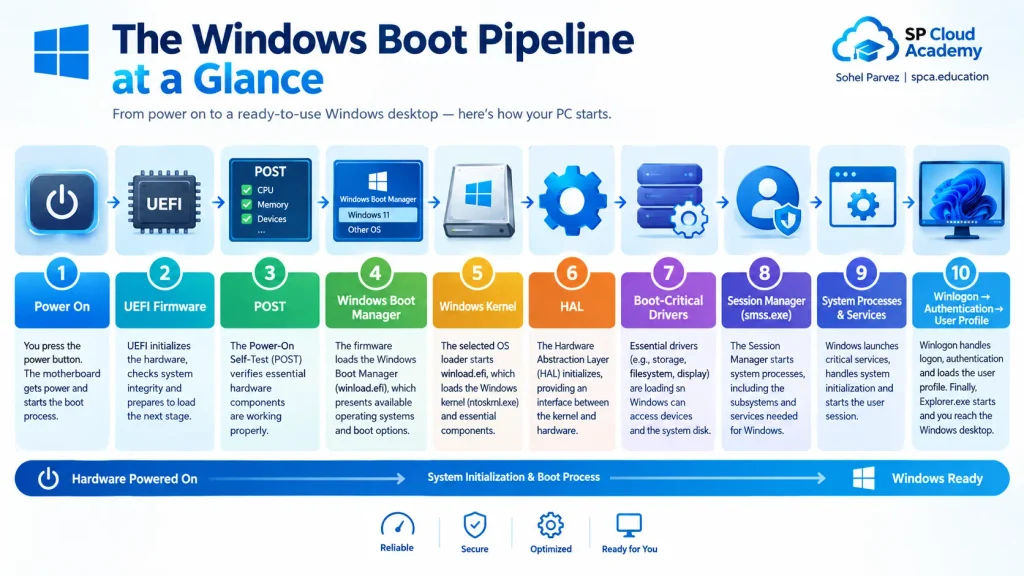
At a high level, the startup sequence looks like this:
Power On → UEFI Firmware → POST → Windows Boot Manager → BCD →
Windows Boot Loader (winload.efi) → Windows Kernel → HAL →
Boot-Critical Drivers → Session Manager (smss.exe) → System Processes
& Services → Winlogon → Authentication → User Profile → Explorer.exe
→ Startup Applications → System Ready
It’s tempting to think of this as one continuous countdown, but it isn’t. It’s a handoff between fundamentally different layers of the system — firmware, then boot software, then the operating-system kernel, then user-mode processes — and each layer has its own failure modes and its own tools for troubleshooting.
2. Power-On, POST, and UEFI Firmware
Before Windows loads a single file, the firmware takes over. Most modern PCs use UEFI (Unified Extensible Firmware Interface) rather than legacy BIOS. During Power-On Self-Test (POST), the firmware initializes and checks core hardware — the CPU, memory, storage controllers, display output, keyboard and USB devices, chipset, and network adapters — and decides which device to boot from.
If a machine takes a long time to even display the Windows logo, the bottleneck is often outside Windows entirely. Common culprits at this stage include:
- Firmware settings (boot order, fast-boot toggles, CSM/legacy options)
- Slow hardware initialization or POST checks
- Storage device detection delays
- Connected USB devices being scanned as potential boot media
- PXE/network boot attempts before falling back to the local disk
- Outdated firmware or genuine hardware faults
The key troubleshooting principle here: a slow pre-logo startup is a firmware or hardware problem, not something you can fix from inside Windows.
3. UEFI, GPT, and the EFI System Partition
Modern Windows installations pair UEFI firmware with a GPT (GUID Partition Table) disk layout, rather than the older Legacy BIOS + MBR combination. A small, dedicated EFI System Partition (ESP) stores the files firmware needs to hand off control to Windows:
EFI System Partition
└── EFI
└── Microsoft
└── Boot
└── bootmgfw.efi
UEFI firmware locates bootmgfw.efi on the ESP and transfers execution to it.
| Feature | Legacy BIOS | UEFI |
| Partition scheme | MBR | GPT |
| Boot mechanism | Boot sector code | Signed EFI executable |
| Secure Boot support | Not available | Native support |
| Role in modern Windows | Legacy, largely phased out | Standard for Windows 10/11 |
4. Windows Boot Manager
Once firmware finishes its work, control passes to Windows Boot Manager — on UEFI systems, the file bootmgfw.efi. Its job is to:
- Read the boot configuration
- Select which operating system or boot entry to start
- Present a boot menu when more than one option exists, or when the last shutdown was unclean
- Hand off to the appropriate boot loader
- Route to a recovery environment when needed
Think of Boot Manager as the bridge between firmware and the operating system itself — it doesn’t run Windows, it decides how Windows should be started.
5. Boot Configuration Data (BCD)
The Boot Configuration Data store holds the settings Windows Boot Manager reads: available boot entries, the default operating system, timeout values, recovery options, and advanced boot parameters. Administrators can inspect it directly:
bcdedit /enum
And back it up before making any change:
bcdedit /export C:\BCD_Backup
Caution: BCD is a critical piece of boot infrastructure. Incorrect edits can produce boot failures, wrong default entries, or a broken recovery path. Treat BCD changes as you would any other change to production infrastructure — back up first, change one thing at a time, and have a documented reason for each edit.
6. The Windows Boot Loader — winload.efi
With an entry selected, Boot Manager starts the boot loader — winload.efi on UEFI systems — which prepares the environment for the kernel:
Boot Manager → winload.efi → Windows Kernel → HAL → Boot-Critical Drivers
This is a hard dependency point: if the kernel or the drivers it needs to reach the system volume can’t be loaded here, Windows cannot continue into normal operation.
7. The Windows Kernel — ntoskrnl.exe
ntoskrnl.exe is the core of the operating system. It’s responsible for process and thread management, memory management, hardware interaction, interrupt handling, I/O, security enforcement, and driver coordination. This is the point where control genuinely shifts from firmware-driven startup to operating-system-driven execution.
8. The Hardware Abstraction Layer (HAL)
The HAL sits between the kernel and hardware-specific details, letting the same Windows kernel run across a wide range of compatible hardware:
Applications → Windows Subsystems → Windows Kernel → HAL → Hardware
9. Boot-Critical Drivers
Not every driver loads at the same point. A subset — typically storage controllers, disk interfaces, file-system drivers, and essential chipset components — must load early enough for Windows to even read the system volume. A serious fault in this path produces errors like:
INACCESSIBLE_BOOT_DEVICE
This is why effective troubleshooting separates boot-critical drivers from the much larger set of drivers that load later, during normal system operation.
10. Session Manager — smss.exe
As Windows moves into user-mode initialization, the Session Manager Subsystem (smss.exe) takes over. It performs early environment setup and prepares the ground for the subsystems and processes that follow:
Kernel Initialization → smss.exe → System/User Sessions → Additional Subsystems
11. Core System Processes
From here, Windows brings up a small set of foundational processes:
smss.exe
├── csrss.exe
├── wininit.exe
│ └── Services
└── winlogon.exe
The real process tree is more intricate than this, but this simplified model is enough for practical troubleshooting.
12. Windows Services and the Service Control Manager
Services provide background functionality for both the OS and installed applications, visible through:
services.msc
Each service has a startup type:
- Automatic
- Automatic (Delayed Start)
- Manual
- Disabled
Should you disable services to speed up boot?
Not by default. A service can carry dependencies, security responsibilities, or application requirements that aren’t obvious from its name. Professional optimization means confirming a service is actually the bottleneck before touching its configuration — not disabling things speculatively.
13. Winlogon and Authentication
During interactive login, Winlogon coordinates the authentication sequence:
Windows Initialization → Winlogon → Authentication → User Profile → Interactive Session
Depending on the environment, authentication may involve local accounts, Microsoft accounts, on-premises Active Directory, Microsoft Entra ID-based organizational sign-in, third-party credential providers, or conditional-access and security policies. In managed enterprise environments, login delays are frequently caused by authentication and network round-trips — not by anything in the traditional “boot” sequence.
14. User Profile Initialization
After authentication succeeds, Windows loads the user’s environment: registry hive, desktop configuration, application preferences, user folders, environment variables, per-user startup items, and any sync agents. This is precisely why a fast-booting machine can still have a slow login:
Fast boot does not guarantee a fast logon.
15. Explorer.exe and the Desktop
The familiar Windows shell — desktop, taskbar, File Explorer, and shell integration — is provided by explorer.exe:
Authentication → User Profile → explorer.exe → Desktop → Startup Applications
Important caveat: seeing the desktop is not the same as the system being fully ready. Background processes may still be starting, syncing, updating, scanning, loading shell extensions, or establishing network connections well after the desktop appears.
16. Boot, Logon, and Ready State Are Not the Same Thing
When you measure startup performance, be precise about what you’re actually timing:
| Phase | Starts At | Ends At / Includes |
| Boot | Power on | Firmware → Boot Manager → Kernel → Drivers → Services |
| Logon | Login screen appears | Authentication → User profile load |
| Ready | Desktop appears | Startup apps, background services, sync, security init, network init |
A benchmark that only measures “time until desktop appears” will systematically miss a large amount of legitimate post-logon activity.
17. What Actually Causes Slow Windows Startup?
Delays can originate at any of five layers:
Hardware layer: slow or failing storage, limited RAM/CPU resources, external device initialization.
Firmware layer: UEFI configuration, boot-device enumeration, PXE/network boot attempts, outdated firmware.
Boot layer: BCD misconfiguration, boot-loader issues, driver initialization problems, system file corruption.
Service layer: heavy service dependency chains, security software, management/monitoring agents.
User layer: startup applications, cloud sync clients, collaboration tools, update agents, browser extensions.
The core lesson: don’t optimize the wrong layer. Fixing the desktop-level startup apps won’t help if the real delay is happening during POST.
18. A Measurement-First Optimization Strategy
Professional optimization starts with data, not assumptions:
Measure → Identify → Change → Test → Measure Again → Document
This loop prevents the common failure mode of making several changes at once and never knowing which one — if any — actually helped.
19. Reviewing Startup Applications
Windows exposes startup application controls in two places:
- Settings → Apps → Startup
- Task Manager → Startup apps tab
Typical candidates for review include game launchers, chat clients, vendor utilities, optional update agents, cloud-sync tools, and tray applications. The right question isn’t “can this be disabled?” — it’s “does this genuinely need to auto-start for how this user actually works?” That framing protects functionality while still trimming real overhead.
20. Storage Performance and Startup
Storage is one of the biggest levers on boot time. As a general (not universal) hierarchy:
NVMe SSD → SATA SSD → HDD
Practical steps: monitor drive health, keep adequate free space, review real-world storage performance, keep firmware current where appropriate, and avoid piling disk-intensive applications into the startup sequence.
21. Fast Startup vs. a Full Restart
Fast Startup uses a hybrid shutdown that closes the user session but preserves relevant kernel state, so the next startup can reuse it. For troubleshooting, a full Restart is more useful, because it forces a genuinely fresh initialization. This distinction matters whenever a problem seems to “go away” simply because the machine was restarted rather than shut down and powered back on.
22. Windows Updates and Driver Management
Windows Update addresses security vulnerabilities, compatibility issues, driver problems, and reliability bugs. Pay particular attention to chipset, storage, graphics, network, and audio drivers, plus firmware-related components. In managed environments, use controlled driver-deployment processes rather than unverified third-party “driver updater” utilities.
23. System Integrity Checks
When startup behavior looks abnormal, check system file integrity before anything more invasive:
sfc /scannow
DISM /Online /Cleanup-Image /RestoreHealth
These are repair and integrity tools, not general-purpose “speed booster” commands, and should be used with that scope in mind.
24. Diagnosing Boot Performance with Event Viewer
For deeper diagnostics, Event Viewer records boot-performance telemetry:
Event Viewer → Applications and Services Logs → Microsoft →
Windows → Diagnostics-Performance → Operational
A commonly referenced boot-performance record is Event ID 100. The goal isn’t just to find the event — it’s to correlate it against boot duration, recent configuration changes, drivers, installed applications, services, and hardware conditions.
25. Windows Performance Recorder and Analyzer
For serious performance engineering, the Windows Performance Toolkit provides detailed ETW-based tracing:
Windows Performance Recorder → ETL Trace →
Windows Performance Analyzer → CPU / Disk / Driver / Process Analysis
This level of detail is especially valuable when delays are intermittent, the responsible process isn’t obvious, disk activity is unexpectedly high, drivers are suspected, or an enterprise startup environment is genuinely complex.
26. Isolating Problems with Clean Boot
When third-party software is a likely suspect, Clean Boot narrows the startup environment down to Windows core components plus a minimal third-party footprint, then reintroduces services and applications gradually. The objective is isolation — finding the culprit — not permanently stripping down the system.
27. A Practical Troubleshooting Decision Tree
Use the stage at which the slowdown appears to direct your investigation:
- Before the Windows logo appears → UEFI, POST, hardware, storage detection
- At the Windows logo → Boot Manager, BCD, winload, drivers, storage
- At the login screen → Authentication, network, domain/Entra ID, user profile, services
- After the desktop appears → Startup apps, cloud sync, security software, background services, CPU/RAM/disk load
28. Practices to Avoid
- Indiscriminate registry “cleaning” — not a substitute for real diagnostics
- Randomly disabling services without checking dependencies
- Blindly disabling the page file — Windows memory management relies on more than physical RAM alone
- Manually deleting system files — component dependencies are often non-obvious
- Aggressive “memory cleaning” utilities — high RAM usage isn’t automatically a problem
- Changing many settings at once — you lose the ability to tell what actually helped
29. Windows Boot Optimization Checklist
Firmware
- Review UEFI configuration and boot-device order
- Disable unnecessary network/PXE boot options
- Update firmware where appropriate
- Investigate hardware-detection delays
Storage
- Check SSD/NVMe health
- Confirm adequate free space
- Measure real storage performance
- Verify storage firmware is current
Windows Core
- Apply Windows Updates
- Review drivers, especially storage, chipset, and network
- Run system integrity checks (SFC/DISM)
- Review BCD only when there’s a specific reason to
Startup
- Audit startup applications
- Disable only what’s genuinely unnecessary
- Review cloud-sync and background applications
Diagnostics
- Review Event Viewer Diagnostics-Performance logs
- Use Clean Boot to isolate suspected third-party software
- Use Windows Performance Recorder/Analyzer for complex or intermittent cases
30. The Administrator’s Mental Model
Once internalized, the full pipeline is easy to keep in your head:
UEFI → Boot Manager → BCD → winload.efi → Kernel + HAL →
Boot-Critical Drivers → Session Manager → System Processes → Services →
Winlogon → Authentication → User Profile → Explorer.exe →
Startup Applications → System Ready
With this model in place, troubleshooting stops being guesswork and becomes a matter of locating which link in the chain is actually broken.
Conclusion
Windows startup isn’t a single event — it’s a layered handoff across firmware, boot software, the kernel, drivers, services, authentication, the user profile, and the shell. The most reliable principle for any administrator is simple: measure first, optimize second. Rather than disabling services at random, editing the registry speculatively, or reaching for a generic “PC optimizer,” identify the specific stage responsible for the delay — firmware, storage, Boot Manager, BCD, winload, the kernel, driver initialization, services, authentication, the user profile, Explorer, or startup applications — and then apply a targeted, evidence-based fix.
Key Takeaways
- Windows boot is a pipeline, not a single operation: UEFI → Boot Manager → BCD → winload → Kernel → Drivers → Services → Winlogon → User Profile → Explorer → Startup Apps.
- A visible desktop does not mean the system is fully ready.
- Boot, logon, and post-logon performance should be measured as separate phases.
- Event Viewer and the Windows Performance Toolkit provide genuine diagnostic depth beyond Task Manager.
- Avoid indiscriminate registry edits and speculative service disabling.
- Evidence-based optimization consistently outperforms “speed-hack” shortcuts.
Frequently Asked Questions
What is the Windows boot process?
It’s the sequence Windows follows to move from firmware initialization to a fully operational user environment — spanning UEFI/POST, Boot Manager, the kernel, drivers, services, authentication, and the shell.
What does Windows Boot Manager do?
It manages the handoff from firmware to Windows, reading the BCD store to decide which operating system or boot entry to load.
What is BCD in Windows?
Boot Configuration Data — the store holding the settings Windows Boot Manager uses during startup, including boot entries, defaults, and recovery options.
What is winload.efi?
The Windows boot loader on UEFI systems. It prepares the kernel and other essential components before operating-system initialization begins.
What is ntoskrnl.exe?
The Windows kernel image, responsible for core functions such as memory management, thread scheduling, and hardware interaction.
Why does my PC feel slow right after the desktop appears?
The desktop can render before background startup work finishes. Startup apps, sync clients, security software, and services can still be consuming resources for some time afterward.
Does disabling startup apps actually speed up boot?
It can reduce post-login load time, but the effect depends entirely on which applications you disable and how resource-intensive they are.
Is Fast Startup the same as a Restart?
No. Fast Startup performs a hybrid shutdown that preserves some kernel state; Restart forces a fully fresh initialization — which is why Restart is more reliable for troubleshooting.
How do I diagnose a slow Windows boot?
Identify which phase is slow first, then use Task Manager, Event Viewer’s Diagnostics-Performance log, Clean Boot, and — for complex cases — Windows Performance Recorder and Analyzer.
Should I disable Windows services to boot faster?
Not without first confirming the service is actually the bottleneck and understanding what depends on it. Services often carry dependencies that aren’t obvious from their names.
See Also
-
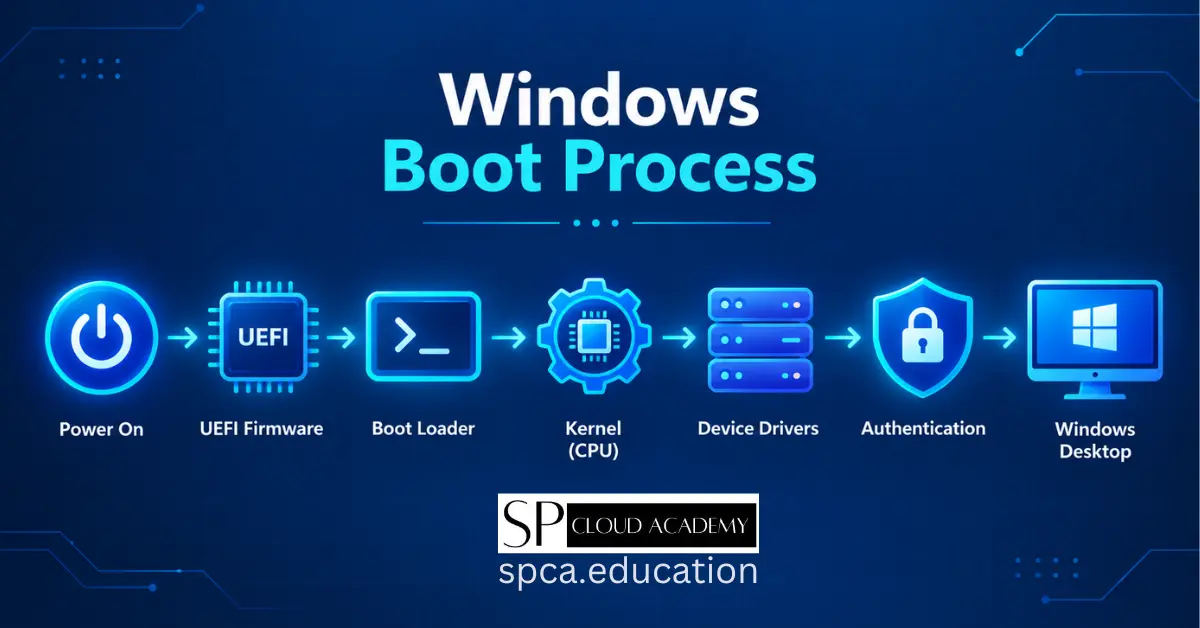
Windows Boot Process: Deep Dive, Troubleshooting & Optimization
-

Windows 11 Advanced Recovery: The Complete Step-by-Step Guide to Fixing Boot Errors, Crash Loops and System Failures
-

Windows 11 Personalization: Turn Your Boring Desktop Into a Masterpiece
-

Master Manage-BDE: The Ultimate Guide to Controlling BitLocker from the Command Line
-

Fix Windows Update Like a Pro: The Ultimate Troubleshooting Guide for All Users
-

Microsoft AI Shell Is Here: How the Admin Command Line Just Became Smarter Than Ever
-

The Hidden Windows Tools That Tech Experts Don’t Want You to Know About (And How They’ll Save Your PC)
-
Windows License Types Explained: Retail vs OEM vs Volume — Which One’s Right for You?
-
Boost Your System Like a Pro: Step-by-Step Windows 11 Performance Monitoring Tips