Introduction: Why Every Network Engineer Needs a Professional Toolkit
A network outage rarely announces its cause. A user says “the internet is down,” and the real culprit could be a bent connector, a misconfigured VLAN, a dirty fiber end-face, a failing power supply, or an expired certificate. The engineer who finds the answer fastest is usually the one with the right tools and the knowledge to use them. That is the core idea behind the complete network engineer toolkit: a deliberate collection of hardware, software, testing instruments and documentation practices that covers the whole life of a network, from the first cable pull to the last firmware upgrade.
Basic IT support equipment vs. professional network engineering equipment
A general IT support kit usually holds a screwdriver set, a few patch cables, a basic cable tester and a USB drive. That is enough to fix a desktop or swap a faulty cable. Professional network engineering equipment goes further. It lets you certify a cable run against a standard, measure optical loss across a fiber link, capture and decode packets, power-test a PoE port, and document the result so the next engineer can trust it. The difference is not price alone. It is the ability to prove that something works, not just guess that it does.
Hardware and software are equally important
A tester can tell you a cable is wired correctly, but only a packet capture can tell you why a TCP session keeps resetting. A fusion splicer can join two fibers with low loss, but only a monitoring platform can warn you when that link starts degrading months later. Physical-layer tools and logical-layer tools answer different questions, and strong engineers move between them without friction.
What the right toolkit improves
- Troubleshooting efficiency: you isolate faults by layer instead of swapping parts at random.
- Reliability: certified cabling, clean fiber and monitored devices fail less often and are fixed faster.
- Security: configuration backups, logging and vulnerability scanning make hidden weaknesses visible.
What you will learn
This guide walks through installation tools, testing equipment, fiber optic tools, enterprise hardware, software, security tooling, a field-bag checklist, lab design, toolkits by career level, buying advice, common mistakes, certifications and future trends. Where a claim depends on a standard, vendor feature or licensing model, we say so. Product details, prices, licenses and certification names change, so verify them with the vendor before you buy or publish.
Understanding the Network Engineer Toolkit
A professional network engineer toolkit is the full set of physical instruments, devices, software applications and documentation resources used to design, build, test, secure, monitor and maintain a network. It is not one bag. It is a system with several categories:

- Network installation tools: crimpers, strippers, punch-down tools and cutters.
- Structured cabling equipment: cables, jacks, patch panels, racks, labels and cable management.
- Testing and diagnostic instruments: cable testers, certifiers, tone probes, PoE testers and Wi-Fi analyzers.
- Fiber optic tools: strippers, cleavers, splicers, power meters, VFLs, OTDRs and inspection scopes.
- Network hardware: routers, switches, firewalls, access points, servers and UPS systems.
- Configuration software: terminal clients, simulators and automation tools.
- Monitoring and security applications: SNMP monitors, SIEM platforms and vulnerability scanners.
- Documentation and management tools: diagramming software, IP address management and configuration backups.
How the categories work across the lifecycle
Think of the network lifecycle in five stages. Plan: simulation software and diagramming tools help you design before you spend money. Build: installation and cabling tools create the physical layer. Verify: testers, certifiers and fiber instruments prove the physical layer meets requirements. Operate: configuration, monitoring and security tools keep services running. Improve: documentation, logs and automation feed the next round of upgrades. A weak link at any stage, such as skipping verification or failing to document, causes problems at every later stage.
Network Installation and Structured Cabling Tools
Most network faults begin at the physical layer. Good installation tools and disciplined technique prevent a large share of them. The following ten items form the core of copper installation work.

1. RJ45 Crimping Tool
What it is: a hand tool that presses an RJ45 plug onto the end of a twisted-pair cable. How it works: the die inside the jaws forces the contact blades through the wire insulation and seats the plug’s strain-relief. Primary application: making patch cords and terminating cables to plugs. Where engineers use it: workstation drops, lab patch leads, camera and access point connections. Selection criteria: match the tool to the plug type (standard vs. pass-through, shielded vs. unshielded), look for a ratchet mechanism that gives consistent pressure, and choose a model with a built-in cutter if you want fewer tools to carry. Installation consideration: in permanent cabling, terminate to jacks and panels and use factory-made patch cords. Field-crimped plugs on solid-core cable are a common source of intermittent faults.
2. Ethernet Cable Stripper
What it is: a tool that removes the outer jacket without nicking the conductors. How it works: an adjustable blade scores only the jacket so you can twist and pull it off. Primary application: preparing cable for crimping or punch-down. Selection criteria: blade depth control and compatibility with the cable’s outer diameter (Cat6A and shielded cables are thicker). Consideration: nicked conductors can pass a quick test and fail later under movement or temperature change.
3. Punch Down Tool
What it is: a spring-loaded tool that seats each conductor into an insulation-displacement connector (IDC) on a keystone jack, patch panel or 110-type block. How it works: the blade pushes the wire between two contacts, which cut through the insulation to make the connection, and trims the excess. Primary application: permanent link termination. Selection criteria: blade type (110 vs. Krone and others), impact adjustment and a comfortable handle. Consideration: keep the untwisted length of each pair as short as possible, since excess untwist degrades performance at higher frequencies.
4. Network Cable Cutter
A flush cutter trims conductors cleanly, and a heavier cutter handles bundles. Choose sharp, flush-cut jaws. Dull cutters crush wire ends and make punch-down unreliable.
5. RJ45 Connectors
Plugs differ by cable category, conductor type (solid vs. stranded), and whether they are shielded. Use plugs rated for your cable category and conductor type. Mismatched plugs are a classic cause of poor contact.
6. Keystone Jacks
Keystone jacks are modular outlets that snap into wall plates, surface boxes or patch panels. Most carry color-coded labels for both T568A and T568B. Select the jack category to match your cable and, ideally, buy from the same vendor and family as the cable for tested compatibility.
7. Patch Panels
A patch panel terminates horizontal cabling in the rack and exposes it as ports. Patch cords then connect those ports to switches. This arrangement protects the permanent cabling because only patch cords get moved. Choose by port count, category rating, angled or flat design and whether it is shielded.
8. Cable Management Accessories
Hook-and-loop (Velcro-style) straps, horizontal and vertical managers, J-hooks and cable trays keep bundles supported and bend radii safe. Avoid tight plastic zip ties on twisted-pair bundles, since overtightening can deform the cable geometry.
9. Cable Label Printer
Label printers produce durable, legible labels for cable ends, ports and panels. Select a model with self-laminating or wrap-around labels so they survive handling, and use a consistent naming scheme.
10. Cable Certification Tools
A certifier tests a link against a defined standard and produces a pass or fail report. We cover these in detail in the next section because they belong to the testing toolkit, but remember that certification is part of installation, not an optional extra.
Ethernet cable categories compared
| Category | Typical bandwidth rating | Typical use | Key note |
| Cat5e | 100 MHz | Gigabit Ethernet (1000BASE-T) | Common in older installs |
| Cat6 | 250 MHz | 1 Gbps; 10GBASE-T over shorter distances | 10G is limited to shorter links than Cat6A |
| Cat6A | 500 MHz | 10GBASE-T up to 100 m | Standard choice for new enterprise builds; thicker cable |
| Cat8 | 2000 MHz | 25GBASE-T and 40GBASE-T over short links | Intended mainly for data center top-of-rack and short runs |
Confirm exact limits against the relevant TIA and IEEE documents, since distance and performance depend on installation quality and channel design.
T568A and T568B wiring standards
Both standards use the same four pairs and differ only in swapping the orange and green pairs. The pin order is:
- T568B: white/orange, orange, white/green, blue, white/blue, green, white/brown, brown.
- T568A: white/green, green, white/orange, blue, white/blue, orange, white/brown, brown.
The key rule is consistency. Use one standard across the whole site and document which one you chose.
Straight-through and crossover cables
A straight-through cable uses the same standard on both ends and connects unlike devices, such as a PC to a switch. A crossover cable uses T568A on one end and T568B on the other to connect like devices directly. Today most devices support Auto-MDI/MDI-X, which detects and corrects the pair arrangement automatically, so crossover cables are rarely required. Older equipment is the exception.
Structured cabling principles
Structured cabling follows a standard layout so the network can grow without chaos. Horizontal cabling runs from the telecommunications room to work areas, and backbone cabling links telecom rooms, equipment rooms and entrance facilities. Work-area patch cords connect devices. Horizontal copper links are limited to 90 m of permanent cable, with up to 10 m total for patch cords at both ends, giving a 100 m channel. The ANSI/TIA-568 family and ISO/IEC 11801 define these rules.
Labeling and management best practices
- Label both ends of every cable, and label panel ports and outlets with matching IDs.
- Use a naming scheme that encodes location, such as room, rack and port.
- Maintain minimum bend radius, and keep copper away from heavy power cabling.
- Use color coding for roles (for example, uplinks vs. user ports), and record the scheme.
- Leave a service loop, but keep it neat.
- Record every link in documentation immediately after testing.
Network Testing and Troubleshooting Equipment
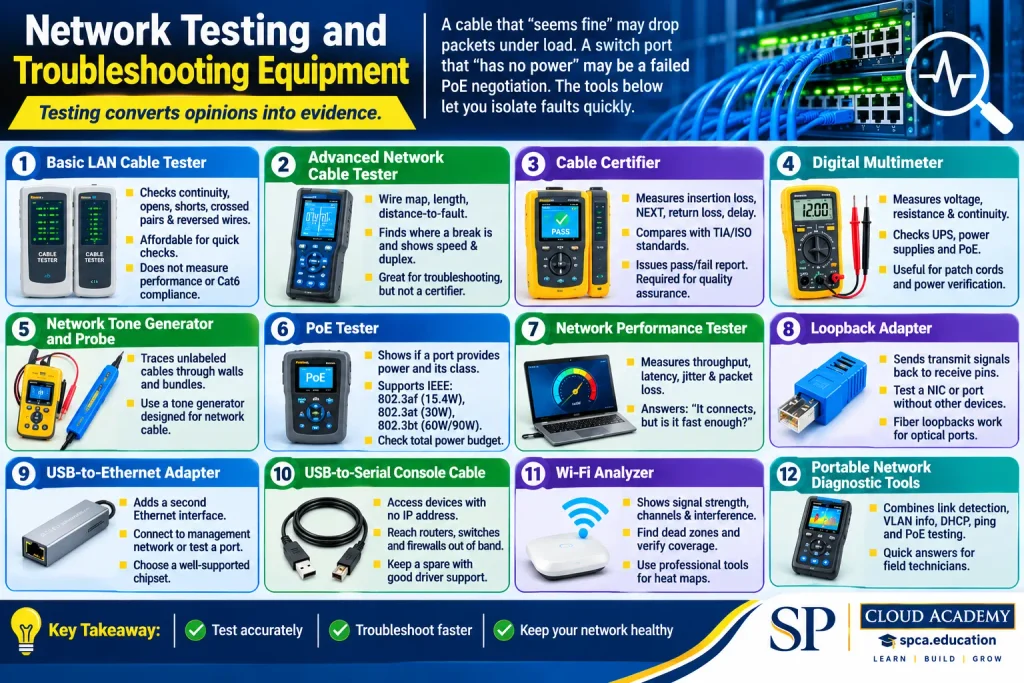
Testing converts opinions into evidence. A cable that “seems fine” may drop packets under load. A switch port that “has no power” may be a failed PoE negotiation. The tools below let you isolate faults quickly.
1. Basic LAN Cable Tester
A two-piece tester sends a signal down each conductor and lights LEDs to show continuity, opens, shorts, crossed pairs and reversed wires. It is inexpensive and perfect for quick checks, but it does not measure performance such as crosstalk or attenuation. It cannot tell you whether a cable meets Cat6 requirements.
2. Advanced Network Cable Tester
Mid-range testers add wire map, length, distance-to-fault, and sometimes basic link and switch port detection. They help find where a break is and what the device on the other end negotiated, such as speed and duplex. They are excellent for troubleshooting but are not substitutes for certification.
3. Cable Certifier
A certifier measures parameters such as insertion loss, near-end crosstalk (NEXT), return loss and propagation delay, then compares them to a standard such as TIA or ISO limits. It issues a pass or fail result and a report. Customers and contracts often require certification reports as proof of quality. Fluke Networks and other vendors publish technical resources on how certification works.
4. Digital Multimeter
A multimeter measures voltage, resistance and continuity. In networking it is useful for checking UPS and power supply outputs, verifying patch cord continuity and confirming that a PoE injector is delivering power. It does not replace a PoE tester for negotiated power classes.
5. Network Tone Generator and Probe
The tone generator places an audible signal on a cable, and the probe detects it. Use it to trace an unlabeled cable through walls, ceilings and bundles to its panel port. Use only a tone generator designed for network cable, and avoid connecting it to powered equipment.
6. PoE Tester
Power over Ethernet (PoE) delivers power on the same cable as data. A PoE tester shows whether a port provides power and which class it negotiates. The commonly encountered IEEE standards are 802.3af (up to 15.4 W at the source), 802.3at (up to 30 W) and 802.3bt (up to 60 W for Type 3 and up to 90 W or more for Type 4, depending on how it is measured). Always check the power budget of the switch as a whole, not just individual ports.
7. Network Performance Tester
These devices (and software such as iPerf3) measure throughput, latency, jitter and packet loss. They answer the question, “It connects, but is it fast enough?”
8. Loopback Adapter
A loopback plug sends transmit signals back to the receive pins. Use it to test a NIC or port and confirm that hardware is functioning without involving other devices. Fiber loopbacks perform the same function on optical ports.
9. USB-to-Ethernet Adapter
A reliable adapter gives your laptop a second, independent Ethernet interface. Use it to connect to a management network while staying on the production LAN, to test a port with a known-good NIC, or to run captures. Choose a well-supported chipset.
10. USB-to-Serial Console Cable
When a device has no IP address, console access is your lifeline. A USB-to-serial cable (often with an RJ45-to-USB console cable) lets you reach routers, switches and firewalls out of band. Choose cables with a chipset that has good driver support on your operating system, and keep a spare. Many modern devices also offer USB-C or mini-USB console ports.
11. Wi-Fi Analyzer
A Wi-Fi analyzer shows signal strength, channel use, interference and neighboring networks. Software tools suit quick checks, while professional survey tools support heat maps and predictive design. Use them to select channels, find dead zones and verify coverage after installation.
12. Portable Network Diagnostic Tools
Handheld network testers combine link detection, switch port information (such as VLAN and LLDP/CDP neighbor details), DHCP checks, ping and PoE testing in one device. They are a favorite of field technicians who need quick answers without opening a laptop.
Key differences to understand
| Comparison | Explanation |
| Cable tester vs. cable certifier | A tester checks wiring and continuity. A certifier measures electrical performance against a standard and creates a report. |
| Network analyzer vs. packet analyzer | A network analyzer is a broad term that may include performance, topology and protocol views. A packet analyzer, such as Wireshark, captures and decodes individual packets. |
| Connectivity vs. performance testing | Connectivity tests confirm that a path exists (ping, link light). Performance tests measure speed, loss and latency under load. |
| Physical vs. logical troubleshooting | Physical covers cables, ports, power and optics. Logical covers IP addressing, VLANs, routing, DNS and applications. |
Practical troubleshooting examples
Example 1: a PC has a link light but no network. Start at layer 1 and 2: confirm the port is up, the speed and duplex are correct and the VLAN assignment is right. Then move up: does the PC have a valid IP address through DHCP? Can it reach the gateway? This bottom-up approach quickly shows whether the issue is physical or logical.
Example 2: a new cable run passes a basic tester but the link is slow. A basic tester only confirms wiring. Run a certification test. Failures in NEXT or return loss often point to poor termination, excessive untwisting or a damaged cable.
Example 3: an access point does not boot. Use a PoE tester at the cable end. If no power is present, check the switch’s PoE budget, the port configuration and the cable length. If power is present but the class is wrong, check the AP’s requirements.
Example 4: you cannot reach a switch remotely. Connect via the console cable. Check interface status, IP configuration and the management VLAN. A common cause is a missing default gateway or an ACL blocking management access.
Fiber Optic Networking Toolkit
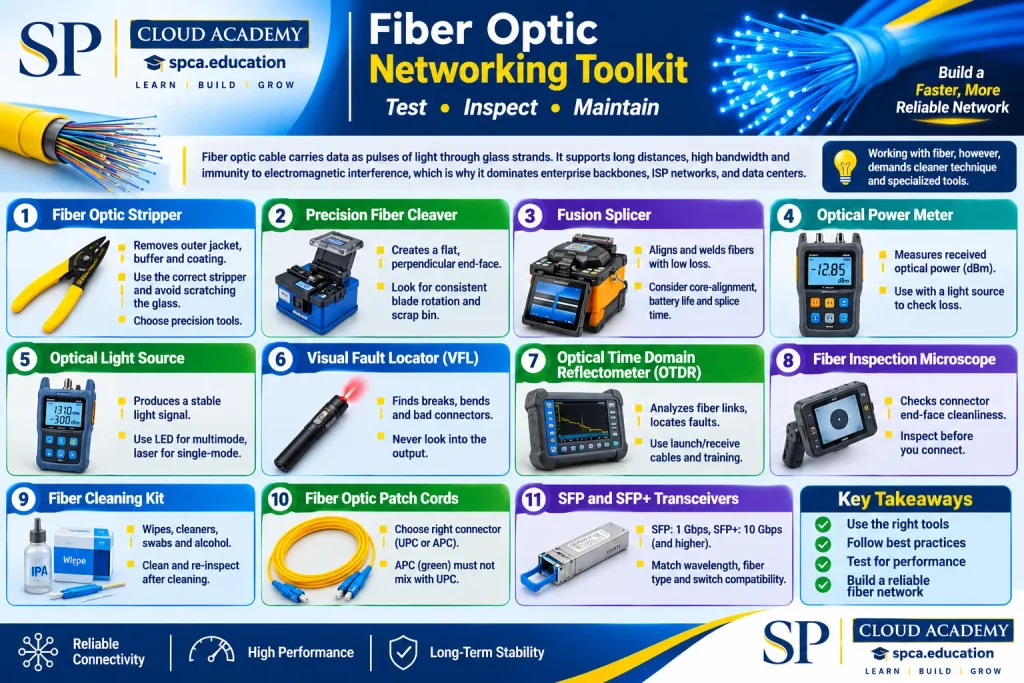
Fiber optic cable carries data as pulses of light through glass strands. It supports long distances, high bandwidth and immunity to electromagnetic interference, which is why it dominates enterprise backbones, ISP networks, telecommunications links and data center fabrics. Working with fiber, however, demands cleaner technique and more specialized instruments than copper.
1. Fiber Optic Stripper
Fiber strippers remove the outer jacket, buffer and coating in stages, often with separate openings for each layer. Use the correct stripper for the fiber type, and strip carefully so the glass is not scratched. Choose tools with precision-ground blades.
2. Precision Fiber Cleaver
A cleaver scores and breaks the fiber to create a flat, perpendicular end-face. A poor cleave causes high splice loss or a failed connector termination. Look for consistent blade rotation, a reliable fiber holder and a scrap collection bin.
3. Fusion Splicer
A fusion splicer aligns two fibers and welds them together with an electric arc. Fusion splices usually offer very low loss and good reliability, making them the preferred method for permanent joins and pigtail splicing. Core-alignment machines are often used for single-mode work, and clad-alignment machines are common for general use. Consider arc calibration, battery life, splice time, heating oven speed and service availability.

Fusion Splicer AI-6A Fiber Optical Fusion Splicer with 8S Splicing & 18S Heating, Core Alignment Fiber Splicer with 5200mAh Large Battery Capacity, Automatic FTTH Precision
4. Optical Power Meter
The power meter measures the optical power received at a given wavelength, shown in dBm. Used with a light source, it measures end-to-end loss.
5. Optical Light Source
A stable light source produces a known power level at standard test wavelengths. Together with a power meter it forms an optical loss test set (OLTS). Match the source type to the fiber: LED sources are typical for multimode, while laser sources are used for single-mode.
6. Visual Fault Locator (VFL)
A VFL sends visible red light through the fiber. Breaks, tight bends and bad connectors often glow, so you can find faults in short patch cords and enclosures. VFLs also help identify fibers and verify continuity. Never look into the output of a connected or unconnected fiber, since even a visible laser deserves caution.
7. Optical Time Domain Reflectometer (OTDR)
An OTDR sends light pulses into a fiber and analyzes the backscattered and reflected light. The resulting trace displays events such as connectors, splices, bends and breaks along the link, with their distance and loss. Use it to certify installations, locate faults in long links and document splice quality. Reading OTDR traces takes training, and launch and receive cables are needed to measure the first and last connectors accurately.
8. Fiber Inspection Microscope
Inspection scopes display the connector end-face so you can see dust, oil and scratches. Many include pass or fail analysis based on cleanliness standards such as IEC 61300-3-35. Inspect before you connect.
9. Fiber Cleaning Kit
A kit normally includes lint-free wipes, click-style cleaners for connectors and adapters, swabs for bulkhead ports and approved isopropyl alcohol or dedicated cleaning fluid. Follow the manufacturer’s method and re-inspect after cleaning.
10. Fiber Optic Patch Cords
Patch cords come in many connector types, polishing styles (such as UPC and APC) and fiber types. APC (angled physical contact) connectors are typically green and must not be mated with UPC connectors, since the angle mismatch causes high loss and can damage end-faces.
11. SFP and SFP+ Transceivers
Small Form-factor Pluggable (SFP) modules convert electrical signals to optical (or copper) signals so switches and routers can use different media. SFP generally supports 1 Gbps, SFP+ 10 Gbps, and newer form factors such as SFP28, QSFP+ and QSFP28 support higher rates. Match the module to the wavelength, fiber type, distance and the switch vendor’s compatibility list.
Single-mode vs. multimode fiber
| Feature | Single-mode (OS1/OS2) | Multimode (OM1–OM5) |
| Core size | About 9 µm | 50 µm or 62.5 µm |
| Typical reach | Long distance (kilometers) | Shorter distances (campus, data center) |
| Light source | Laser | LED or VCSEL |
| Cost | Cheaper fiber, often more expensive optics | Fiber costs more per meter at higher grades, optics often cheaper |
| Typical use | ISP, metro, campus backbone | Building and data center links |
Exact reach depends on the optics, data rate and fiber grade, so consult the transceiver datasheet.
Common connector types
- LC: small form factor, widely used on SFP modules and in dense patch panels.
- SC: larger push-pull connector, common in telecom and older enterprise cabling.
- ST: bayonet-style connector, found in older multimode installations.
- MPO/MTP: multi-fiber connector (often 12 or 24 fibers) used for high-density parallel optics and 40G, 100G and above.
Fiber link testing, power and insertion loss
Insertion loss is the amount of optical power lost between a transmitter and receiver, caused by fiber attenuation, connectors and splices. A loss budget compares the expected loss with the transceiver’s power budget to confirm the link will work with margin. Tier 1 testing uses a power meter and light source to measure loss and length. Tier 2 adds OTDR testing for event-level detail. Use the acceptance limits from your standard or project specification, and test with the right reference method and test cords.
Common installation mistakes
- Connecting without cleaning or inspecting connectors.
- Mixing UPC and APC connectors.
- Exceeding the minimum bend radius.
- Using the wrong patch cord type (for example, multimode cord on a single-mode link).
- Leaving dust caps off and contaminating ports.
- Skipping end-to-end testing and documentation.
Comparison of essential fiber tools
| Tool | What it does | Best for | Skill level |
| VFL | Shows visible light at faults | Quick continuity and patch cord checks | Beginner |
| Inspection microscope | Shows connector end-face condition | Pre-connection inspection | Beginner to intermediate |
| Power meter + light source | Measures end-to-end loss | Link acceptance testing | Intermediate |
| OTDR | Maps events and loss along fiber | Fault location and documentation | Advanced |
| Fusion splicer | Joins fibers permanently | Splicing and pigtail termination | Advanced |
Laser safety and fragment handling
Treat all fiber ends as potential laser outputs. Never look into a fiber end or connector, and never use a microscope to view a live fiber unless it has a safe inspection design and the link is disabled. Dispose of fiber shards in a sealed container. They are sharp, nearly invisible and can penetrate skin or eyes. Wear safety glasses, work on a dark mat to see fragments, and never eat or drink near the workspace.
Essential Network Hardware for Professional Engineers
Tools build and test networks, but hardware carries the traffic. A network engineer should understand what each device does and where it belongs.
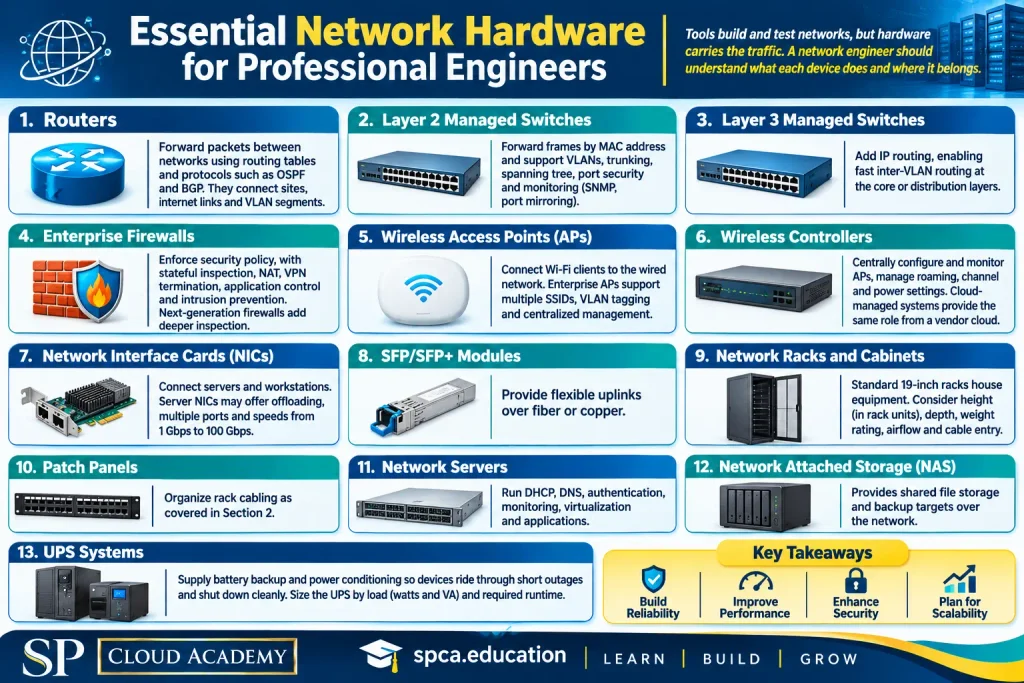
- Routers: forward packets between networks using routing tables and protocols such as OSPF and BGP. They connect sites, internet links and VLAN segments.
- Layer 2 managed switches: forward frames by MAC address and support VLANs, trunking, spanning tree, port security and monitoring (SNMP, port mirroring).
- Layer 3 managed switches: add IP routing, enabling fast inter-VLAN routing at the core or distribution layers.
- Enterprise firewalls: enforce security policy, with stateful inspection, NAT, VPN termination, application control and intrusion prevention. Next-generation firewalls add deeper inspection.
- Wireless access points (APs): connect Wi-Fi clients to the wired network. Enterprise APs support multiple SSIDs, VLAN tagging and centralized management.
- Wireless controllers: centrally configure and monitor APs, manage roaming, channel and power settings. Cloud-managed systems provide the same role from a vendor cloud.
- Network interface cards (NICs): connect servers and workstations. Server NICs may offer offloading, multiple ports and speeds from 1 Gbps to 100 Gbps.
- SFP/SFP+ modules: provide flexible uplinks over fiber or copper.
- Network racks and cabinets: standard 19-inch racks house equipment. Consider height (in rack units), depth, weight rating, airflow and cable entry.
- Patch panels: organize rack cabling as covered in Section 2.
- Network servers: run DHCP, DNS, authentication, monitoring, virtualization and applications.
- Network Attached Storage (NAS): provides shared file storage and backup targets over the network.
- UPS systems: supply battery backup and power conditioning so devices ride through short outages and shut down cleanly. Size the UPS by load (watts and VA) and required runtime.
Consumer-grade vs. enterprise-grade equipment
| Factor | Consumer-grade | Enterprise-grade |
| Management | Simple web interface | CLI, GUI, API, SNMP, centralized management |
| Features | Limited VLAN, routing and security | Advanced VLANs, routing protocols, ACLs, QoS, high availability |
| Reliability | Designed for homes | Designed for continuous operation, redundant power options |
| Support | Limited | Contract-based support, firmware lifecycle |
| Scalability | Small environments | Stackable, modular or controller-based |
Specifications to review before buying
- Port count, port speeds and uplink speeds.
- Switching capacity and forwarding rate (check how the vendor defines them).
- PoE standard and total PoE power budget.
- VLAN, routing, ACL and QoS support.
- Redundancy: dual power supplies, stacking, high availability pairs.
- Management options and monitoring support.
- Firewall throughput with security features enabled, not only raw throughput.
- Wireless standard and client capacity.
- Operating temperature, noise and form factor.
- Support terms, firmware policy and licensing model.
Network Engineering Software Toolkit
Software turns a pile of hardware into a managed system. It lets you practice safely, see what is on the wire, configure devices at scale, watch performance and keep records. The tools below are grouped by function. Licensing changes frequently, so confirm the current license and edition before publication or purchase.

A. Network Simulation and Virtual Labs
- Cisco Packet Tracer: a simulator for learning networking concepts and Cisco-style configuration. It is aimed at beginners and CCNA candidates and is distributed through Cisco Networking Academy. It simulates devices rather than running real operating systems.
- GNS3: an open-source platform that can run real network operating system images (you must supply them legally) alongside virtual machines and containers. Good for intermediate and advanced labs.
- EVE-NG: a multi-vendor emulation platform with a browser interface, offered in community and professional editions. Verify the current editions and terms.
- Cisco Modeling Labs (CML): Cisco’s commercial platform for building virtual topologies with Cisco images. Useful for CCNP-level and automation labs.
B. Packet Analysis and Network Diagnostics
- Wireshark: the standard open-source packet analyzer. It captures and decodes hundreds of protocols, with powerful filters. Beginners can learn how DHCP, DNS and TCP work, and advanced users diagnose retransmissions, TLS issues and VoIP quality.
- Nmap: an open-source scanner for host discovery, port scanning, service detection and scripting. Use it only on networks you own or are authorized to test.
- tcpdump: a command-line packet capture tool, ideal for servers and remote devices without a GUI.
- iPerf3: a free tool for measuring throughput between two endpoints (TCP and UDP), helpful to separate a network problem from an application problem.
C. Remote Administration and Configuration
- PuTTY: a lightweight, free SSH, Telnet and serial client for Windows.
- MobaXterm: a feature-rich terminal with tabs, X server and file transfer. It has free and paid editions.
- Windows Terminal: Microsoft’s modern, open-source terminal that hosts PowerShell, Command Prompt, WSL and SSH sessions.
- OpenSSH: the open-source SSH suite included in most Linux, macOS and current Windows systems. Key-based authentication is a security best practice. Prefer SSH over Telnet.
D. Network Monitoring and Management
- PRTG Network Monitor: a commercial, sensor-based monitoring platform with a limited free tier at the time of writing. Verify current limits.
- Zabbix: an open-source platform for monitoring networks, servers and applications, with flexible alerting and templates.
- Nagios: a long-established monitoring family, with open-source and commercial offerings.
- LibreNMS: an open-source, SNMP-based network monitoring system with auto-discovery.
- SolarWinds Network Performance Monitor: a commercial enterprise platform with extensive mapping and alerting.
E. Network Documentation and IP Address Management
- NetBox: an open-source source of truth for IP addressing, racks, devices and cabling, often used with automation.
- diagrams.net (draw.io): a free diagramming tool for network diagrams.
- phpIPAM: an open-source IP address management application.
Software comparison
| Tool | Primary purpose | License model (verify) | Best for |
| Packet Tracer | Simulation | Free via Cisco Networking Academy | Beginners, CCNA |
| GNS3 | Emulation | Open source | Intermediate labs |
| EVE-NG | Emulation | Community and paid | Multi-vendor labs |
| Cisco Modeling Labs | Emulation | Commercial | Cisco-focused labs |
| Wireshark | Packet analysis | Open source | All levels |
| Nmap | Scanning | Open source (custom license) | Auditing, discovery |
| tcpdump | CLI capture | Open source | Servers, remote capture |
| iPerf3 | Throughput testing | Open source | Performance tests |
| PuTTY / OpenSSH | Remote access | Open source | Device administration |
| MobaXterm | Terminal suite | Free and paid | Admin workstations |
| PRTG | Monitoring | Commercial with free tier | SMB and enterprise |
| Zabbix / LibreNMS | Monitoring | Open source | Flexible monitoring |
| Nagios | Monitoring | Open source and commercial | Alerting |
| SolarWinds NPM | Monitoring | Commercial | Enterprise operations |
| NetBox / phpIPAM | Documentation, IPAM | Open source | Source of truth |
| diagrams.net | Diagramming | Free | Topology drawings |
Network Security and Administration Toolkit
Security is not a separate project that happens after the network is built. It is part of every design and configuration decision. These are the main areas and tools engineers use.

- Firewall management: maintain rule sets with least privilege, remove unused rules, log denied traffic and review policies on a schedule. Use change control for every modification.
- VPN configuration and troubleshooting: site-to-site VPNs (commonly IPsec) connect offices, and remote-access VPNs connect users. Troubleshoot in order: reachability, phase 1 and phase 2 negotiation (for IPsec), routing, NAT traversal, then policy and certificates. Check logs on both ends.
- IDS and IPS: an intrusion detection system alerts on suspicious activity, while an intrusion prevention system can block it inline. Tune signatures to reduce false positives.
- Network Access Control (NAC): verifies who or what is connecting and applies policy, using standards such as IEEE 802.1X, before granting access.
- RADIUS and TACACS+: AAA (authentication, authorization and accounting) protocols. RADIUS is widely used for network access such as Wi-Fi and 802.1X, while TACACS+ is commonly used for device administration with per-command authorization.
- Active Directory integration: lets staff authenticate to network devices, VPNs and Wi-Fi with central identities, simplifying onboarding and removal of access.
- Network segmentation: divide the network by function and risk, such as users, servers, guests, management and IoT, to limit the spread of incidents.
- VLAN security: disable unused ports, avoid using VLAN 1 for user traffic, restrict trunk ports to needed VLANs, use a dedicated native VLAN and enable port security or DHCP snooping where appropriate.
- Access Control Lists (ACLs): filter traffic by IP, protocol and port on routers, Layer 3 switches and firewalls. Order matters, and most ACLs end with an implicit deny.
- SIEM and log analysis: centralize logs from firewalls, switches, servers and authentication systems to detect patterns and support investigations. Synchronize time with NTP so logs correlate.
- Configuration backup and restoration: automatically back up device configurations, store them securely and test restoration. Backups turn a disaster into a routine replacement.
- Vulnerability assessment: scan systems and devices regularly, prioritize findings by risk and patch. Only scan with authorization.
Taken together, these tools reduce the attack surface, limit the blast radius when something goes wrong and give you the evidence you need to respond.
Professional Network Engineer Field Bag
A good field bag lets you complete most site visits without a return trip. Use the checklist below as a starting point and adjust it to your work.

Installation Tools
- Crimping tool
- Cable stripper
- Punch down tool
- Screwdriver set
- Wire cutter
Testing Equipment
- LAN cable tester
- Multimeter
- Tone generator and probe
- PoE tester
Connectivity Accessories
- RJ45 connectors
- Cat6 patch cables
- USB-to-Ethernet adapter
- Console cable
- SFP modules
Fiber Accessories
- VFL
- Fiber cleaning kit
- Optical power meter, when required
Professional Essentials
- Laptop
- Tool organizer
- Cable labels
- Notebook
- Headlamp
- Appropriate safety equipment (safety glasses, gloves where needed, and any site-required protective gear)
Organize, maintain and transport
- Organize by task. Keep cabling, testing and fiber tools in separate pouches so you can find them quickly in a dark ceiling or crowded rack room.
- Protect instruments. Store testers, meters and scopes in padded cases. Keep dust caps on optical devices.
- Maintain tools. Clean and inspect blades and dies, replace worn crimper dies, recharge batteries after every job and follow the manufacturer’s calibration schedule for measurement devices.
- Keep software ready. Update your laptop, terminal client, drivers and console cable software before you travel. Keep a copy of reference configurations offline.
- Transport safely. Use a hard case for sensitive instruments, carry fiber tools by hand and never leave test equipment in a hot vehicle.
- Audit regularly. Check the bag against your list after every job so nothing is left behind.
Building a Professional Network Engineering Lab
A lab is where theory becomes skill. Students, training institutions and working engineers all benefit from a space where they can break things safely.
Suggested physical lab setup
| Equipment | Suggested Quantity |
| Routers | 2 |
| Managed Switches | 2 |
| Enterprise Firewall | 1 |
| Wireless Access Point | 1 |
| Network Server or Mini PC | 1 |
| Patch Panel | 1 |
| Network Rack | 1 |
| UPS | 1 |
| Cat6 Cabling Kit | 1 |
| Network Testing Kit | 1 |
Physical lab vs. virtual lab
| Aspect | Physical lab | Virtual lab |
| Cost | Higher up front | Lower, uses a capable PC or server |
| Hands-on skills | Cabling, console access, hardware behavior | Configuration and design practice |
| Scale | Limited by equipment | Large topologies are possible |
| Flexibility | Slower to change | Quick to rebuild and snapshot |
The best approach combines both: virtual labs for scale and experimentation, and physical equipment for cabling, hardware, optics and real-world behavior.
Progressive learning roadmap
Stage 1: Foundations. Build a small LAN, practice subnetting, configure IP addressing and verify connectivity with ping and traceroute. Terminate and test a cable.
Stage 2: Switching. Create VLANs, trunk links and access ports. Observe Spanning Tree Protocol (STP) root election, then change priorities and watch the result. Add EtherChannel if your switches support it.
Stage 3: Routing. Configure inter-VLAN routing using router-on-a-stick and then a Layer 3 switch. Set up static routes, then OSPF between two routers, and verify neighbor adjacency.
Stage 4: Services. Deploy DHCP and DNS on your server. Configure NAT and write ACLs to permit and deny specific traffic. Capture the traffic with Wireshark to see the effect.
Stage 5: Security. Configure firewall zones and policies, then build a site-to-site VPN. Add 802.1X or RADIUS authentication if possible.
Stage 6: Operations. Deploy a monitoring platform such as Zabbix or LibreNMS, enable SNMP and syslog, back up configurations and document everything in NetBox or diagrams.
Stage 7: Automation. Use Python, SSH libraries or tools such as Ansible to push configurations to the lab, and store the files in version control.
Record what you learned after each exercise. Teaching the lab to someone else is the fastest way to find gaps.
Network Engineer Toolkit by Professional Level
You do not need everything on day one. Match your toolkit to your responsibilities.
Level 1: Beginner / IT Support Technician
| Equipment | Application | Requirement |
| Crimper, stripper, punch down tool | Basic cabling | Learn T568 standards |
| Basic LAN cable tester | Cable verification | Basic networking knowledge |
| Laptop with PuTTY or Windows Terminal | Device access | Command-line basics |
| Console cable and USB-to-Ethernet adapter | Configuration and testing | Device familiarity |
| Packet Tracer and Wireshark | Learning and diagnosis | Study plan (for example, CCNA or Network+) |
Level 2: Professional Network Engineer
| Equipment | Application | Requirement |
| Advanced cable tester or PoE tester | Troubleshooting and installation checks | Solid layer 1 to 3 skills |
| Tone generator and probe, label printer | Cable tracing and documentation | Documentation discipline |
| VFL, cleaning kit, inspection scope | Basic fiber support | Fiber handling training |
| Wi-Fi analyzer or survey software | Wireless design and troubleshooting | Wireless fundamentals |
| Monitoring (Zabbix, LibreNMS or PRTG), iPerf3, Nmap | Operations and performance | Routing, switching and security skills |
Level 3: Senior / Enterprise Network Engineer
| Equipment | Application | Requirement |
| Cable certifier | Contractual certification of cabling | Knowledge of TIA/ISO standards |
| OTDR, fusion splicer, power meter and light source | Fiber installation, acceptance and fault location | Specialized fiber training |
| Enterprise firewall, NAC, SIEM platforms | Security architecture and operations | Advanced security knowledge |
| Automation tools (Python, Ansible, NetBox, version control) | Scaled operations and consistent configuration | Programming and DevOps practices |
| CML, EVE-NG or GNS3 | Design validation and change testing | CCNP-level or equivalent skills |
Senior engineers also depend on process tools: change management, runbooks, capacity planning and vendor support relationships.
How to Choose the Right Network Engineering Tools
Buying tools is easy. Buying the right tools takes planning. Weigh these factors before you spend money.
- Professional requirements: a support technician and a fiber specialist need very different kits. Start from the tasks you perform most often.
- Network size and complexity: a ten-user office does not need an enterprise monitoring suite, while a multi-site network does.
- Equipment compatibility: check that transceivers, cables, testers and software support your switch, router and cabling vendors.
- Accuracy and reliability: measurement tools are only useful if you can trust their results. Look for documented accuracy and credible reviews.
- Manufacturer support: firmware updates, documentation, training and repair options matter over years of use.
- Warranty and calibration: certifiers, power meters and OTDRs need periodic calibration. Include that cost and downtime in your plan.
- Software licensing: understand subscription terms, user and device limits, and renewal costs.
- Portability: weight, battery life and ruggedness matter if you work on site.
- Upgrade possibilities: modular testers and software with module options extend your investment.
- Total cost of ownership: add accessories, adapters, training, calibration, software subscriptions and replacement parts.
Why expensive equipment is not automatically a good investment
A high-end OTDR is wasted if nobody on the team can interpret a trace. A cable certifier that sits in a drawer because your projects never require certification is money tied up for nothing. Expensive equipment pays off only when you understand its application, use it regularly and the work justifies it. Build skills first, then buy tools that remove a real bottleneck. When in doubt, rent specialized instruments for one-off projects.
Common Network Engineering Mistakes to Avoid
| Mistake | Why it matters | Prevention strategy |
| Poor-quality Ethernet cables | Cause intermittent errors, slow links and PoE problems | Buy from reputable suppliers, match category to need and avoid copper-clad aluminum cable for network use unless the specification allows it |
| Incorrect RJ45 termination | Split pairs, high crosstalk and failures | Follow one wiring standard, keep pairs twisted and test every termination |
| Ignoring cable labeling | Slows every future fault | Label both ends and record IDs in documentation |
| Failing to test after installation | Hidden faults appear after go-live | Test and certify every link and keep the reports |
| Incorrect VLAN configuration | Isolated devices, security gaps | Use a VLAN plan, verify trunks and access ports, and review configs |
| Misconfigured IP addressing | Conflicts, wrong gateways, subnet errors | Use an IPAM tool, DHCP reservations and clear subnet plans |
| Ignoring firmware updates | Known vulnerabilities and bugs remain | Track vendor advisories, test updates in a lab and schedule maintenance windows |
| Poor documentation | Slow troubleshooting, dependency on one person | Update diagrams and inventories as part of every change |
| Neglecting configuration backups | Long recovery from failures | Automate backups and test restores |
| Failing to monitor performance | Problems found by users first | Monitor links, devices, errors and capacity with alerts |
| Ignoring fiber cleanliness | A leading cause of optical link problems | Inspect, clean and re-inspect before every connection |
| Overlooking security | Open ports, default passwords, flat networks | Harden devices, segment networks, use AAA and log centrally |
A simple habit helps with most of these: plan, change, verify, document. If you cannot prove the result and record it, the job is not finished.
Essential Skills and Certifications for Network Engineers
Tools extend your abilities, but they do not replace understanding. A certifier gives you numbers, and you need to know what they mean. A packet capture shows thousands of frames, and you need to know where to look. Certifications provide a structured path to that knowledge.
Certifications
- Cisco CCNA: covers networking fundamentals, IP connectivity, IP services, security fundamentals and automation basics. A common starting point for networking careers.
- Cisco CCNP Enterprise: a professional-level certification that typically requires a core exam plus a concentration exam, covering enterprise infrastructure, assurance, security and automation.
- CompTIA Network+: a vendor-neutral certification covering networking concepts, implementation, operations, security and troubleshooting.
- CompTIA Security+: a vendor-neutral security certification covering threats, architecture, operations and governance.
- Fortinet Certified Professional (FCP): a professional-level program from Fortinet with tracks such as network security. Choose it if you work with Fortinet platforms.
Verify before publication or enrollment: exam codes, objectives, prerequisites, renewal rules and certification names change. Always confirm on the Cisco, CompTIA and Fortinet official sites.
Essential skills
- TCP/IP networking: addressing, ports, DNS, DHCP, ARP and the OSI and TCP/IP models.
- Subnetting: designing efficient addressing and spotting configuration errors quickly.
- Routing and switching: VLANs, STP, static and dynamic routing, and high availability.
- Wireless networking: RF basics, channel planning, security and roaming.
- Network security: firewalls, VPNs, segmentation, authentication and logging.
- Linux fundamentals: the command line, services, logs and scripting, since many network tools run on Linux.
- Windows Server administration: Active Directory, DNS, DHCP and group policy.
- Cloud networking: virtual networks, routing, security groups and hybrid connectivity.
- Network automation: Python, APIs, configuration templates and version control.
- Technical documentation: clear diagrams, runbooks and change records.
A practical rule: for every tool you add to your kit, learn the concept behind it, practice with it in a lab and then use it on a real task.
Future of Network Engineering Tools
The core of networking remains stable, but the tools and responsibilities are changing quickly.
- AI-assisted network monitoring: platforms apply machine learning to baseline behavior, correlate events and highlight anomalies. Engineers still need to validate recommendations.
- Network automation: configuration, compliance checks and deployments increasingly happen through code, templates and APIs rather than manual CLI sessions.
- Software-Defined Networking (SDN): separates control from forwarding so policy can be managed centrally.
- Network virtualization: overlays and virtual network functions let teams create logical networks on shared infrastructure.
- Cloud networking: engineers design and secure virtual networks, interconnects and hybrid routing across providers.
- Intent-based networking: administrators define desired outcomes, and software translates them into configuration and verifies the result.
- Wi-Fi 7 (IEEE 802.11be): introduces features such as wider channels and multi-link operation, with more demanding site surveys and uplink requirements.
- 400G and 800G networking: data center and service provider links move to higher speeds, which raises the importance of fiber quality, MPO connectivity and cleaning.
- Zero Trust Network Architecture: removes implicit trust based on location and requires continuous verification of users, devices and applications.
- Predictive network troubleshooting: telemetry and analytics help identify degradation before users notice it.
How the role is changing
Network engineers are moving from device-by-device configuration toward designing systems, writing automation and interpreting telemetry. Yet fundamentals remain essential. Automation amplifies good designs and bad designs equally. The engineers who succeed will combine strong protocol knowledge with scripting skills, security awareness and clear communication. The crimper and the cleaning kit stay in the bag, and the Python script joins them.
Conclusion: Building a Smarter Professional Network Engineering Toolkit
The best network engineer toolkit is not the biggest or the most expensive. It is the one that fits your responsibilities, supports your skills and lets you prove that the network works. Start with the essentials: reliable installation tools, a tester, console access, a packet analyzer and a lab. Build practical experience with each tool, document what you learn and add specialized equipment, such as certifiers, fiber instruments and monitoring platforms, as your projects demand them.
Tools find the fault, but people solve the problem. Successful network engineers combine technical knowledge, practical experience, analytical thinking and a habit of continuous learning. Keep your kit tidy, keep your skills sharp and keep learning with SP Cloud Academy.
See Also
-

Complete Network Engineer Toolkit: A Practical Guide to Networking Hardware, Software and Troubleshooting
-
Routers in 2026
-
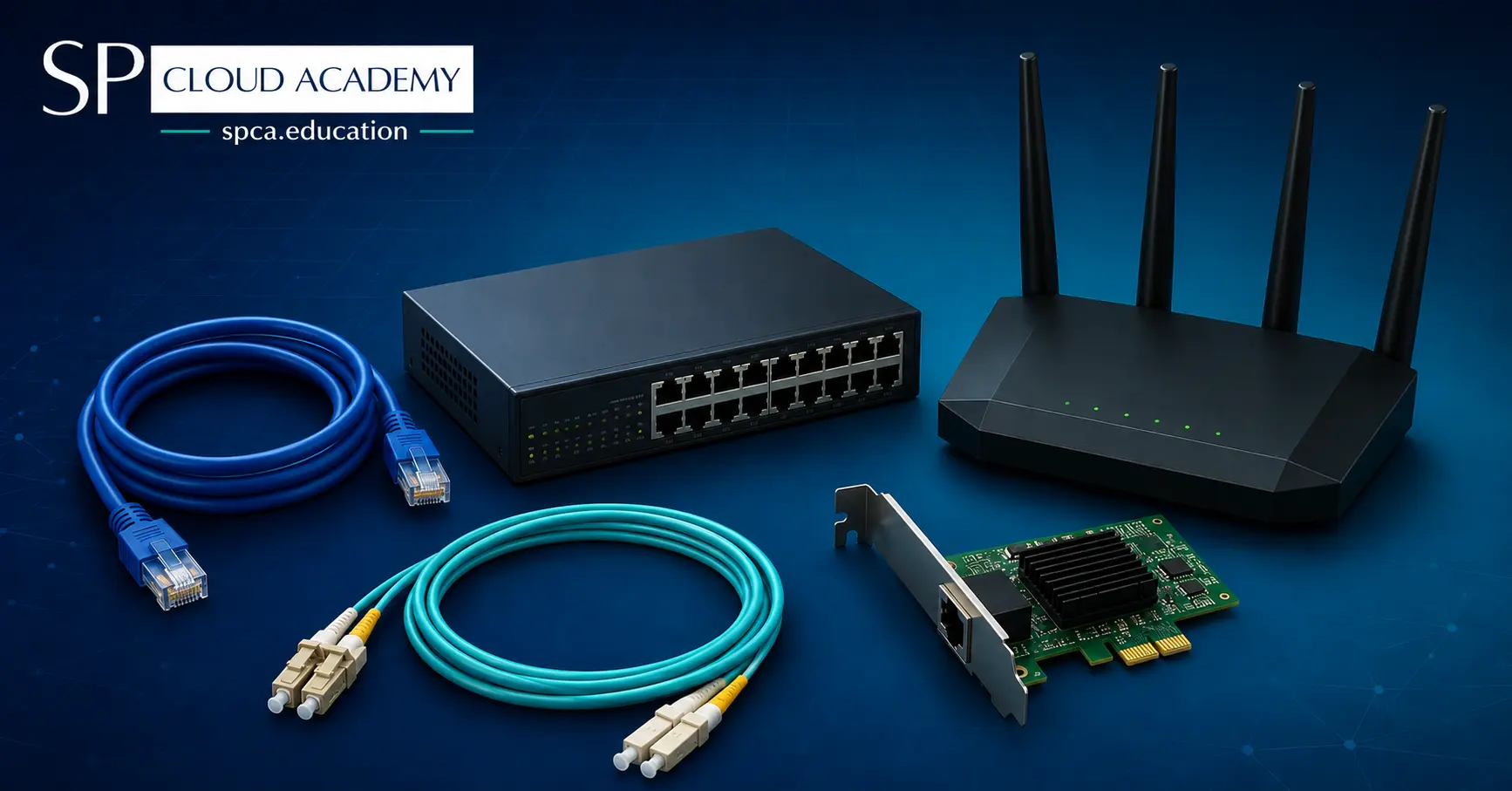
Computer Networking Hardware: The Complete 2026 Guide to Every Device, Cable, and Connector
-
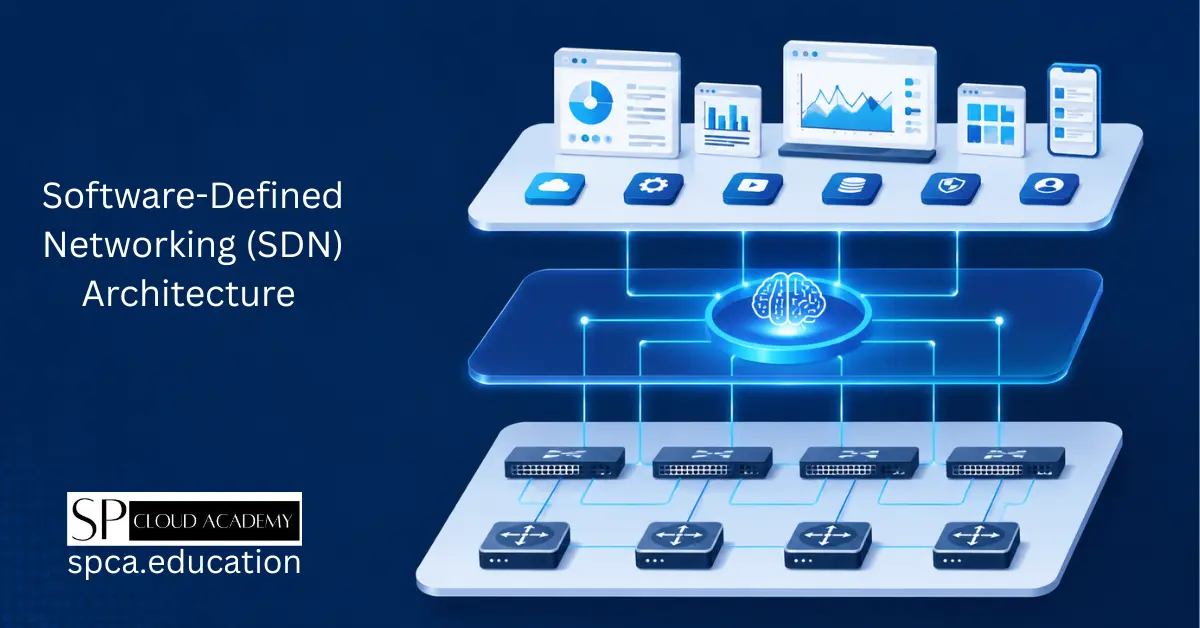
SDN Architecture Explained: Complete Beginner-to-Expert Guide (2026)
-

Networking Architecture Decoded: Choosing Between Peer-to-Peer, Client-Server, and Domain-Based Networks
-

AI-Driven Networking Explained: The Smartest Upgrade Your IT Infrastructure Can Make
-
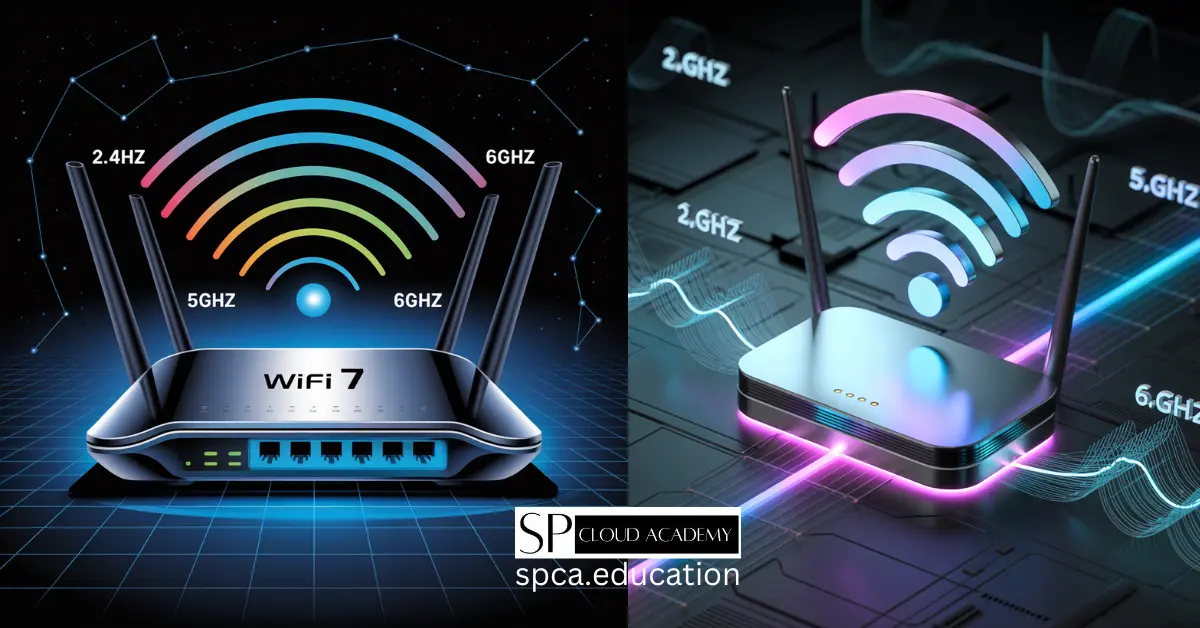
WiFi 7 Explained: The Next-Generation Wireless Technology for Ultra-Fast Speed and Low Latency
-

Why Software-Defined Networking Is the Future (And What That Means for You)
-

From Chaos to Control: How MikroTik Bandwidth Manager Transforms Network Management