Picture this. You leave a laptop in a taxi. Inside it are client files, saved logins and years of work. Whether that moment becomes a small annoyance or a full-blown crisis depends on decisions made long before the laptop went missing. Did the machine have an encrypted drive? Could someone swap its boot software? Was the sign-in strong enough to stop a quick guess?
Good data protection is not one magic setting. It is a stack of defences, each covering for the weaknesses of the others. In this guide we walk through four of the most important layers in the order a computer meets them: firmware, Secure Boot, user authentication and disk encryption. By the end, you will understand what each one does, where it falls short, and how to combine them into something genuinely hard to break.
Before you try any command: The commands below come from standard documentation and common tool behaviour. Test them on a lab machine first. Anything labelled DISRUPTIVE can lock you out or stop a device from booting if done wrong.
Why One Security Control Is Never Enough
Security people call the layered approach defense in depth. The idea is simple: assume any single control will fail one day, and make sure something else is standing behind it.
Consider a few quick examples. A very strong password does nothing if the firmware under the operating system has been tampered with. An encrypted disk helps little if the owner is already logged in and a piece of malware is running. Secure Boot cannot stop someone from handing their password to a fake login page.
Here is how the four layers fit together and the question each one answers:
| Layer | The question it answers |
| Firmware security | Can I trust the very first code that runs, and can an attacker change its settings? |
| Secure Boot | Is the software that starts next signed by someone I trust? |
| User authentication | Who is this person, and what are they allowed to do? |
| Disk encryption | If someone steals the storage, can they read what is on it? |
There is a nice twist that ties everything together. A small chip called the TPM can hand over the disk encryption key only if the boot process looks exactly as expected. That single idea is what turns four separate features into one connected system, and we will come back to it near the end.

Layer 1: Firmware Security, Where Trust Begins
BIOS vs UEFI in Plain English
Firmware is the small program stored on your motherboard. When you press the power button, it wakes up the processor, memory and storage, then hands control to the software that loads your operating system.
Older machines used BIOS, which simply read the first block of a disk and ran whatever it found there. No questions asked. Modern machines use UEFI, which is far more capable. It understands larger disks, can run signed applications from a special boot partition, and can check digital signatures before running anything.

| Feature | Legacy BIOS | UEFI |
| Boot method | Runs the first sector of a disk | Loads applications from the EFI System Partition |
| Disk support | MBR, limited to about 2 TB | GPT, very large disks |
| Integrity checks | None built in | Secure Boot can verify signatures |
| TPM-friendly | Not standardised | Designed to work with TPM 2.0 |
More features also mean a larger attack surface, but UEFI gives defenders tools that BIOS never had. Windows 11, for instance, requires UEFI with Secure Boot capability and a TPM 2.0 chip.
Check which mode your computer uses
On Windows, open PowerShell as Administrator:
Confirm-SecureBootUEFI
msinfo32 # look for “BIOS Mode” and “Secure Boot State”
On Linux:
[ -d /sys/firmware/efi ] && echo ‘UEFI boot’ || echo ‘Legacy BIOS boot’
Why Firmware Is a Favourite Target
Firmware loads before your antivirus, before your operating system and before any security agent. It also runs with very high privileges. If an attacker plants something malicious here, it can survive a reinstall of Windows or even a replaced hard drive.
Real-world weaknesses usually fall into a few groups:
- Buggy parsers and drivers. In 2023, researchers disclosed LogoFAIL, a set of flaws in the way some firmware handles boot-logo images. A booby-trapped image file could influence early boot.
- Unprotected flash storage. If the chip holding the firmware can be rewritten from inside the operating system, malware can rewrite it too.
- Old, signed boot files that stay trusted. The BlackLotus bootkit abused a flaw in a legitimately signed Windows boot component. Microsoft later published mitigation steps under CVE-2023-24932.
- Supply chain risk. Firmware often contains code from several outside vendors.
Standards bodies take this seriously. NIST SP 800-147 offers BIOS protection guidance, while NIST SP 800-193 introduces the idea of platform firmware resiliency: protect it, detect changes, and be able to recover.
Keep Firmware Updated (Carefully)
The safest habit is to apply firmware updates through your hardware maker, such as Dell, HP or Lenovo, or through the Linux Vendor Firmware Service. Large organisations usually push updates through Windows Update, vendor tools or device management platforms.
On a Linux machine with fwupd installed:
fwupdmgr refresh
fwupdmgr get-updates
sudo fwupdmgr update
To see your current firmware version:
sudo dmidecode -s bios-version # Linux
Get-CimInstance Win32_BIOS | Select-Object Manufacturer, SMBIOSBIOSVersion, ReleaseDate # Windows
DISRUPTIVE: A firmware update changes what the TPM measures. If BitLocker is on, suspend it first so it can re-seal itself on the next start, and make sure your recovery key is saved somewhere safe before you begin: Suspend-BitLocker -MountPoint “C:” -RebootCount 1
Firmware Passwords and Settings Protection
Most firmware lets you set more than one password, though the names change by brand:
- Administrator (supervisor) password: needed to open firmware setup or change settings such as boot order, Secure Boot and TPM state.
- User (power-on) password: needed just to start the machine.
- Drive (ATA) password: enforced by the drive itself. Behaviour varies, so never treat it as a replacement for real disk encryption.
Why bother? Without an administrator password, anyone with a few minutes of physical access can switch off Secure Boot, boot from a USB stick or clear the TPM. A sensible baseline looks like this:
- Set a strong administrator password and keep it in a password manager.
- Keep Secure Boot and the TPM switched on.
- Restrict booting from USB or network where your workflow allows it.
- Turn off ports and features you do not use.
- For many devices, use the maker’s management tools to set and rotate passwords centrally.
Be honest about the limits, though. A firmware password is a deterrent, not encryption. On some consumer boards a CMOS reset wipes it, and a skilled attacker with the right tools can even reprogram the flash chip. This is exactly why disk encryption has to sit underneath it.
TPM 2.0: The Hardware Root of Trust
A Trusted Platform Module (TPM) is a tiny security chip. It may be a separate piece of hardware, built into the processor firmware (Intel PTT or AMD fTPM), or virtual inside a virtual machine. Its main talents are:
- Protected keys. Private keys can be created inside the chip and never leave it in plain form.
- PCRs (Platform Configuration Registers). These record boot measurements. They can only be extended, never overwritten, so they work like a tamper-evident diary of what started up.
- Sealing. A secret, such as a disk key, can be locked so it is only released when the PCR values match.
- Attestation. The chip can sign a report of its measurements so another system can verify them.
- Lockout protection. Too many wrong PIN guesses and the TPM slows down or blocks further attempts.
A few PCRs come up again and again:
| PCR | What it typically records |
| 0 | Core firmware code |
| 1 | Firmware configuration and platform data |
| 2 and 3 | Option ROM and driver code and settings |
| 4 | Boot manager and boot loader code |
| 5 | Boot manager configuration and the GPT partition table |
| 7 | Secure Boot state and policy |
Use of PCR 11 and beyond depends on the operating system or distribution.
To look at your TPM on Windows, run Get-Tpm or open tpm.msc. On Linux, install tpm2-tools and try:
ls /dev/tpm*
sudo tpm2_getcap properties-fixed | head -n 40
sudo tpm2_pcrread sha256:0,2,4,7
What the TPM cannot do is just as important. It does not stop malware that runs after boot, it does not identify the user, and in some setups a determined attacker with hardware access may be able to snoop on the connection to a discrete chip. Adding a pre-boot PIN (BitLocker TPM+PIN, or a TPM2 PIN with systemd-cryptenroll) makes the attack far harder, because the key now needs both correct measurements and a secret from the user.
Layer 2: Secure Boot, the Gatekeeper
How Secure Boot Works
Secure Boot is part of the UEFI standard. Every time firmware loads something, whether it is a boot manager, a boot loader or a driver, it checks the digital signature against a list of trusted certificates. If the signature is bad, or the file has been revoked, the firmware simply refuses to run it.

The trust information lives in four protected databases:
| Name | Full name | Job |
| PK | Platform Key | Top of the chain. Controls who may change the KEK. |
| KEK | Key Exchange Key | Approves updates to db and dbx. |
| db | Signature Database | Certificates and hashes of allowed software. |
| dbx | Forbidden Database | Revoked certificates and hashes. Blocks known-bad boot files. |
Most retail devices ship in User Mode, where changes must be signed. Setup Mode, where no Platform Key exists, allows keys to be changed without authentication, so it should only ever be used deliberately.
What the boot chain looks like
- Windows: the firmware checks the Windows Boot Manager, which checks the loader and kernel, which then checks early drivers and anti-malware.
- Linux: the firmware checks a Microsoft-signed component called shim. Shim checks the distribution’s boot loader and kernel, using either the distro certificate or a Machine Owner Key that you enrolled yourself.
Handy status checks:
Confirm-SecureBootUEFI # Windows
mokutil –sb-state # Linux
bootctl status # systemd-boot systems
cat /sys/kernel/security/lockdown # Linux kernel lockdown mode
Heads up on certificates: Microsoft has announced that the original 2011-era Secure Boot certificates begin to expire in 2026, with a staged replacement process. Check Microsoft’s current guidance and your hardware maker’s advisories before assuming your devices are covered.
Secure Boot vs Measured Boot vs Remote Attestation
These three get mixed up all the time. The shortest way to remember them: Secure Boot is a gatekeeper, Measured Boot is a witness, and Remote Attestation is the report sent to a judge.
| Secure Boot | Measured Boot | Remote Attestation | |
| What it does | Blocks unsigned or revoked code | Records hashes into TPM registers | Sends a signed health report to a server |
| Needs a TPM? | No | Yes | Yes |
| If something is wrong | Boot fails | Boot continues, evidence is kept | Server can deny access |
| Good for | Stopping unsigned bootkits | Sealing disk keys, forensics | Zero-trust and fleet health |
One more thing worth remembering: a correctly signed file can still contain bugs. Secure Boot trusts the signer, not the quality of the code. That is why keeping the revocation list current matters, and why attacks such as BlackLotus were possible.
What Secure Boot does not do: It does not prove your operating system is clean, stop already-running malware, defend against a malicious administrator, or check who the user is. Think of it as a strong baseline, not proof of integrity.
Common Problems and How to Think About Them
| What you see | Likely cause | Where to look |
| “Secure Boot violation” at start-up | Unsigned or modified loader, damaged boot partition, or a newly revoked file | Boot trusted recovery media and repair the boot files |
| Secure Boot shows Off in msinfo32 | Legacy boot mode, MBR disk or disabled setting | Convert to UEFI and GPT, then enable it |
| Linux driver will not load | Third-party module is unsigned | Sign the module and enrol a MOK |
| BitLocker asks for recovery key | Secure Boot settings changed, so PCR 7 changed | Enter the key, confirm settings are stable, re-seal |
| Old USB tools stop booting | dbx update revoked their boot files | Rebuild the media with updated signed files |
DISRUPTIVE: Turning Secure Boot off, clearing keys or entering Setup Mode changes the TPM measurements and will probably trigger recovery on encrypted devices. Keep your recovery key at hand and have a rollback plan before you touch these settings.
A few habits make life easier. Record the firmware settings for each hardware model. Keep a signed recovery USB ready. Avoid disabling Secure Boot as your first troubleshooting step, and instead try to find which component is unsigned. In larger environments, test dbx and certificate updates on a small pilot group first.
Layer 3: User Authentication and Authorization
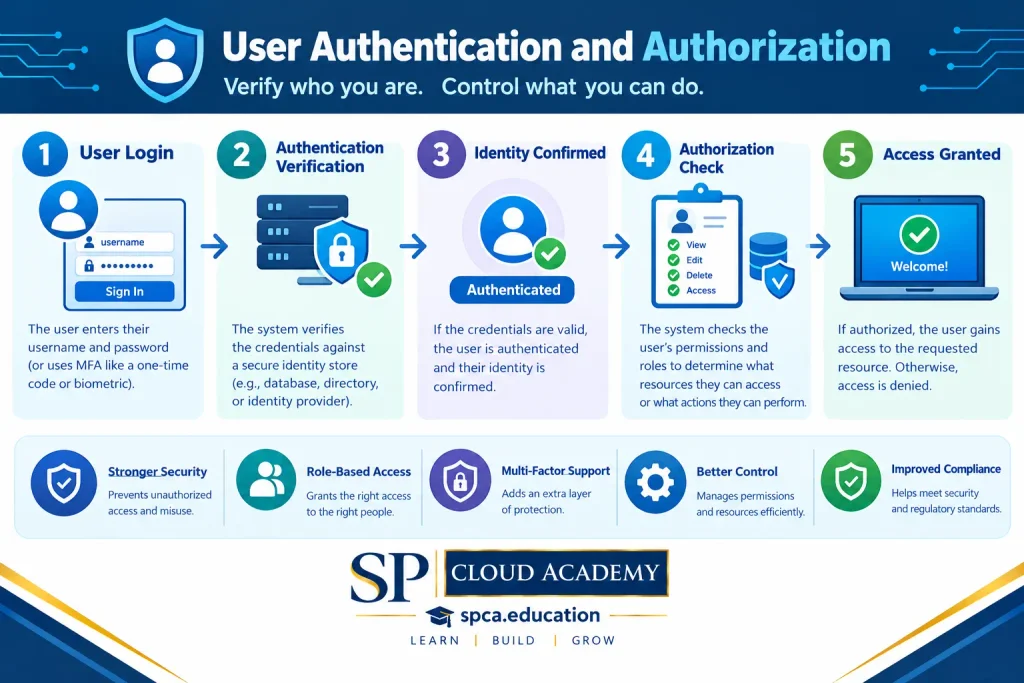
Once the machine has started safely, the next question is simple: who is sitting at the keyboard?
Passwords: Choosing Them and Storing Them
Passwords are still everywhere, which makes them the most attacked factor. Good practice has two sides.
For users: current NIST guidance in SP 800-63B favours length over fussy complexity rules. It suggests checking new passwords against lists of breached ones, allowing password managers and pasting, and not forcing regular changes unless there is evidence of compromise.
For systems: never store a password in plain text. Store the result of a slow, salted, purpose-built hashing function. The OWASP Password Storage Cheat Sheet puts Argon2id first, with scrypt, bcrypt or PBKDF2 as alternatives in certain situations.
| Concept | Why it matters |
| Salt | A unique random value per password. It defeats precomputed tables and hides duplicate passwords. |
| Work factor | Makes each guess slow, which hurts attackers who steal a database. |
| Pepper (optional) | A secret kept outside the database, for example in a hardware module. |
| Fast hashes (MD5, SHA-1, plain SHA-256) | Built for speed, which is exactly what attackers want. Not suitable for passwords. |
Real systems vary. Linux keeps hashes in /etc/shadow, readable only by root, and modern distributions use yescrypt or SHA-512-crypt. Windows local accounts keep an NT hash in the SAM database. That hash is unsalted, which is one reason stolen hashes can be cracked quickly or reused in pass-the-hash attacks. It is also a strong argument for moving away from passwords wherever possible.
To see which algorithm a Linux host uses, without exposing the hashes themselves:
sudo awk -F: ‘{print $1, substr($2,1,4)}’ /etc/shadow
Biometrics, Passkeys and Security Keys
Biometrics. A fingerprint or face scan on a modern device is usually a local gesture that unlocks a key protected by hardware. It is not a secret sent to a server. With Windows Hello for Business, for example, the key pair sits in the TPM and your finger or PIN only permits its use on that device. Convenient, yes, but you cannot change your fingerprint, so always keep a strong PIN as the fallback.
Passkeys (FIDO2 and WebAuthn). A passkey is a public-key credential. The website stores only the public half. The private half stays on your device, and each signature is tied to the real site address. That brings real benefits:
- A fake website cannot get a valid signature for the real one, so phishing largely fails.
- There is no shared secret sitting in a server database waiting to leak.
- Synced passkeys are easier to live with, while device-bound passkeys on a hardware key give stronger assurance for high-risk accounts.
Hardware security keys. These USB, NFC or Bluetooth devices keep the private key in tamper-resistant hardware and require a physical touch. They are among the strongest widely used options, especially for administrators.
Multi-Factor Authentication, Ranked Honestly
MFA mixes factors from different groups: something you know, something you have and something you are. Not all methods are equal, though.
| Method | Strength | Comment |
| SMS or voice code | Weak | Exposed to SIM swapping and interception. |
| Email code | Weak to moderate | Only as safe as the mailbox itself. |
| Authenticator app (TOTP) | Moderate | Codes can still be phished in real time. |
| Push notification | Moderate | Prone to prompt-bombing unless number matching is on. |
| Passkey or FIDO2 key | Strong | Phishing-resistant by design. |
| Smart card or certificate | Strong | Heavier to run because it needs a PKI. |
A practical rule: roll out phishing-resistant MFA to administrators and remote access first, then widen it. And do not forget the back door. If the help desk resets accounts too easily, attackers will skip your strong MFA and walk through account recovery instead.
Authentication vs Authorization
Authentication answers “who are you?” Authorization answers “what may you do?” A user signs in with a passkey, and then the system checks their group membership to decide whether they can open a finance folder or install software. Plenty of breaches involve perfectly valid logins that were given far too much power, so a strong sign-in paired with broad rights is still a weak design.
Least Privilege and Role-Based Access Control
Least privilege (see NIST SP 800-53, control AC-6) means every person, process and service receives only the access needed for the task. Role-based access control (RBAC) supports this by giving permissions to roles and then placing users in roles, which makes audits and onboarding far simpler.
- Use a standard account for daily work and a separate admin account for administration.
- On Windows, limit local Administrators and rely on UAC. On Linux, use sudo with specific command rules instead of shared root.
- Prefer just-in-time, time-limited elevation, such as Privileged Identity Management in Microsoft Entra ID or similar tools.
- Review privileged group membership on a regular schedule.
To see your current privileges:
whoami /groups # Windows
net localgroup Administrators # Windows local admins
id # Linux
sudo -l # Linux sudo rights
Layer 4: Disk Encryption, Your Last Line of Defence
Everything so far helps while the computer is running or booting. Disk encryption covers the scenario where the device is lost, stolen or taken apart. Without the right key, the data on the drive is just meaningless noise.

Full Disk Encryption in a Nutshell
Full disk encryption (FDE) scrambles everything on a volume using a strong algorithm, usually AES. A random data encryption key does the heavy lifting, and that key is itself protected by something you control, such as a PIN, a passphrase, a recovery key or the TPM. This split design is useful. You can change a passphrase without re-encrypting the whole drive, because only the small key wrapper changes.
The Big Three: BitLocker, FileVault and LUKS
| BitLocker | FileVault | LUKS | |
| Platform | Windows | macOS | Linux |
| Key protection | TPM, optional PIN, recovery key | Login password and recovery key, backed by Apple hardware | Passphrase, keyfile, or TPM2 and FIDO2 via systemd-cryptenroll |
| Recovery | 48-digit recovery key, often escrowed in an account or directory | Recovery key or linked account | Backup passphrase and a header backup |
| Best habit | Use TPM+PIN on laptops | Turn it on and store the recovery key safely | Back up the LUKS header |
BitLocker
BitLocker is built into most Windows business editions and works best with a TPM. On a laptop that could be stolen, a pre-boot PIN is well worth the small inconvenience. To check the state of your drives:
manage-bde -status
Get-BitLockerVolume
FileVault
On a Mac, FileVault is switched on from System Settings under Privacy and Security. Apple’s hardware ties the encryption to the device, and you decide how recovery works, either with a personal recovery key or through your Apple account. To check it from Terminal:
fdesetup status
LUKS on Linux
LUKS is the standard disk encryption format on Linux, managed with cryptsetup. A few inspection commands:
lsblk -f
sudo cryptsetup luksDump /dev/<your-device>
sudo cryptsetup luksHeaderBackup /dev/<your-device> –header-backup-file luks-header.img
DISRUPTIVE: If the LUKS header is damaged and you have no backup, the data is gone for good. Store the header backup somewhere secure and separate. Never run cryptsetup format or similar commands on a disk that holds data you need.
Key Management: Where Most Encryption Plans Fail
Strong ciphers are rarely the weak point. Lost keys are. A few rules prevent painful surprises:
- Save the recovery key before you need it. Escrow it in a directory service, a managed vault or at the very least a secure offline location.
- Never store the recovery key on the encrypted drive itself. It sounds obvious, yet it happens.
- Test recovery. Practise it once on a spare device so the first time is not an emergency.
- Plan for change. Rotate keys when someone leaves, and re-escrow after a recovery event.
What Disk Encryption Does Not Protect
Be clear-eyed here. Encryption protects data at rest, meaning while the device is off or locked. Once you are signed in, the data is readable by you and by anything running as you. Encryption will not stop a phishing attack, a malicious email attachment or a stolen session token. It also does not protect data that is copied to an unencrypted USB drive or uploaded to a careless cloud folder. That is why it works best as one layer among several.
Putting It All Together: How the Layers Reinforce Each Other
Now we can come back to the connecting idea from the start of this guide. Here is what happens on a well-configured laptop:
- The firmware starts, protected by an administrator password and kept up to date.
- Secure Boot checks that each boot component is signed and not revoked.
- Measured Boot records what loaded into the TPM.
- The TPM releases the disk key only if those measurements look right, and only after the user enters a PIN.
- The user signs in with a passkey or other phishing-resistant method.
- Authorization limits that user to only what the job needs.
If an attacker tampers with the boot files, the measurements change and the disk stays locked. If they steal the drive, they cannot read it. If they phish a password, a passkey or hardware key stops them. If they get in anyway, least privilege limits the damage. No single layer is perfect, but together they make the attacker’s job slow, noisy and expensive.

Frequently Asked Questions
Does Secure Boot protect me from malware?
Only a specific kind. It helps block unauthorised code during start-up, such as bootkits. It does not scan or protect the running operating system, so you still need normal security tools and good habits.
Does BitLocker protect against malware?
No. BitLocker protects data on a powered-off or locked device. Malware running in your signed-in session can read your files like you can.
Why does BitLocker suddenly ask for a recovery key?
Usually because something in the boot measurements changed, such as a firmware update, a Secure Boot setting change or new hardware. Entering the recovery key unlocks the drive, and you can then let it re-seal.
Is a TPM the same as a firmware password?
No. A firmware password controls who can change settings or start the machine. A TPM stores keys and records boot measurements. They do different jobs and work best together.
Should I turn off Secure Boot to fix a boot problem?
Try not to. Turning it off removes a protection and can trigger recovery on encrypted drives. First work out which component is unsigned or revoked.
How do I protect a LUKS header?
Make a backup with cryptsetup luksHeaderBackup and keep it in a separate, secure place. Without the header, an encrypted volume cannot be opened.
Conclusion
Data protection works best when you stop looking for one perfect lock and start building layers. Trustworthy firmware gives the machine a safe start. Secure Boot and Measured Boot keep tampering out and leave evidence behind. Strong authentication and least privilege decide who gets in and how far they can go. Disk encryption makes a stolen drive worthless.
You do not need to do everything this week. Start with the basics: update your firmware, set an administrator password, switch on disk encryption and save your recovery key. Then move your most important accounts to passkeys. Each step is small, and together they change your risk dramatically.
Which layer is the weakest link in your setup today? Fix that one first, then work your way up the stack.
References and Further Reading
- NIST SP 800-147, BIOS Protection Guidelines
- NIST SP 800-193, Platform Firmware Resiliency Guidelines
- NIST SP 800-63B, Digital Identity Guidelines: Authentication and Lifecycle Management
- NIST SP 800-53, Security and Privacy Controls (control AC-6, Least Privilege)
- OWASP Password Storage Cheat Sheet
- Microsoft documentation: Secure Boot, BitLocker and CVE-2023-24932 guidance
- Trusted Computing Group: TPM 2.0 and PC Client Platform specifications
- Linux Vendor Firmware Service (fwupd) and cryptsetup project documentation
- Apple Platform Security Guide (FileVault)
Always confirm version-specific details and command behaviour in the current vendor documentation before applying changes to production systems.
See Also
-

Data Protection Deep Dive: Firmware Security, Secure Boot, User Authentication & Disk Encryption
-

Inside a Ransomware Attack: The Working Principle, Attack Lifecycle & Powerful Protection Strategies
-

Essential Cybersecurity Practices for PC Users
-

Protect Your PC Like a Pro: How Unified Write Filter Keeps Your System Untouchable
-

Social Media Hacking Protection: Ultimate Guide 2026
-

Cybersecurity in 2026: Beyond Hacks and Firewalls – Industry Insider Predictions
-

Unmasking Fake Photos: How Metadata Analysis and Reverse Search Reveal the Truth
-

The Secret Weapons of Smart Self-Defense in the Age of Cyberbullying
-

Secure Smarter: The Best Android Password Apps to Trust in 2025