Managing BitLocker Drive Encryption through the Windows graphical interface is convenient, but power users and IT professionals need more control. The Manage-BDE command-line tool provides comprehensive access to BitLocker features, enabling automation, scripting, and advanced configuration. Whether you’re securing enterprise workstations or managing encryption on personal devices, mastering Manage-BDE unlocks the full potential of Windows disk encryption.
This comprehensive guide explores every aspect of Manage-BDE, from basic status checks to advanced recovery scenarios. You’ll learn practical commands, troubleshooting techniques, and best practices that transform BitLocker management from a GUI-dependent task into a streamlined command-line operation. By the end, you’ll confidently handle encryption across multiple drives and systems with precision and efficiency.
What is Manage-BDE and Why Use It?
Manage-BDE is the command-line interface for BitLocker Drive Encryption, built directly into Windows operating systems. This powerful executable (manage-bde.exe) resides in the System32 folder and provides complete control over encryption operations. Unlike the Control Panel interface, Manage-BDE exposes advanced options and enables batch processing of multiple drives simultaneously.
The command-line approach offers distinct advantages for specific scenarios. System administrators managing dozens of workstations can script encryption deployment across networks. IT professionals troubleshooting encryption issues gain detailed diagnostic information unavailable through the GUI. Remote server management becomes possible without graphical desktop access. Automation enthusiasts integrate BitLocker operations into PowerShell scripts for streamlined workflows. When the graphical interface fails or becomes unresponsive, Manage-BDE provides a reliable fallback method.
Getting Started with Manage-BDE
Before executing any Manage-BDE commands, you need administrator privileges. Open Command Prompt or PowerShell by right-clicking and selecting “Run as administrator.” The tool works on Windows Vista and later versions, though newer operating systems offer expanded functionality.
The basic syntax follows this pattern: manage-bde [action] [drive] [options]. Actions include operations like -status, -on, -off, and -lock. Drive letters specify target volumes, such as C: or D:. Options modify behavior with parameters like -recoverypassword or -protectors. Understanding this structure makes all subsequent commands logical and predictable. Before modifying any drive, verify BitLocker prerequisites: a compatible TPM chip for system drives, sufficient free space for encryption metadata, and appropriate Windows edition support. Enterprise and Professional editions include full BitLocker support, while Home editions require alternative encryption solutions.
Checking BitLocker Status
The -status parameter provides comprehensive information about encryption state across all volumes. Running “manage-bde -status” displays every drive with details including encryption percentage, protection status, key protectors, and encryption method. This command serves as your primary diagnostic tool when troubleshooting BitLocker issues.
For targeted information about a specific drive, append the drive letter: “manage-bde -status C:”. The output reveals whether encryption is on or off, the conversion status (fully encrypted, encrypting, or decrypting), the encryption method (AES 128-bit or 256-bit), and all configured key protectors. When documenting system configurations or preparing support tickets, this command provides essential technical details. Understanding status output helps identify misconfigurations, such as drives encrypted without recovery keys or TPM-only protection on portable drives that require password access.
Enabling BitLocker Encryption
Activating BitLocker from the command line requires careful parameter selection to ensure proper protection. The command “manage-bde -on C: -recoverypassword” enables encryption on the C: drive and generates a numerical recovery password. This 48-digit password serves as the emergency access method when primary protectors fail.
Several protection methods can secure your encrypted drives. TPM-only protection automatically unlocks drives during boot on devices with Trusted Platform Module chips. Password protection requires manual entry and suits removable drives accessed across multiple computers. Smart card authentication provides enterprise-grade security for high-security environments. Recovery key files saved to USB drives offer physical backup access methods. Combining multiple protectors creates layered security, such as TPM plus PIN for maximum protection. The -protectors parameter lets you specify exactly which methods to configure during encryption. Always save recovery information before completing encryption, as data becomes permanently inaccessible without proper credentials.
Managing Key Protectors
Key protectors are the authentication methods that unlock encrypted drives. Manage-BDE provides granular control over adding, removing, and modifying these protectors. The command “manage-bde -protectors -add C: -password” adds password protection to an already-encrypted drive, prompting you to create a secure passphrase.
Viewing existing protectors helps audit security configurations. Run “manage-bde -protectors -get C:” to list all protection methods with their unique identifiers. Each protector receives a GUID that enables targeted removal or modification. When replacing compromised passwords, use the -delete parameter with the specific protector ID, then add a fresh password. TPM protectors can be enhanced with PIN requirements using the -TPMAndPIN parameter for startup authentication. Enterprise environments often standardize on specific protector combinations, and Manage-BDE lets administrators enforce these policies through scripted deployment. Recovery protectors deserve special attention since they provide last-resort access when primary methods fail. Always maintain backup copies of recovery keys in secure locations separate from the encrypted devices.
Suspending and Resuming BitLocker
Certain maintenance operations require temporarily disabling BitLocker protection. The -pause command suspends encryption without decrypting data, allowing BIOS updates, hardware changes, or system recovery operations. Execute “manage-bde -pause C:” to suspend protection on the specified drive immediately.
Paused drives remain encrypted but become accessible without authentication during the next boot cycle. This temporary state prevents lockouts when modifying boot configurations or replacing motherboards. After completing maintenance, restore protection with “manage-bde -resume C:” to reactivate all configured key protectors. Some systems automatically resume protection after a specified number of reboots, providing safety against forgotten suspensions. Administrators should document suspension reasons and durations to maintain security audit trails. Suspending BitLocker differs fundamentally from disabling it—paused drives reactivate quickly without the hours-long decryption and re-encryption process. This distinction makes suspension ideal for brief maintenance windows where full decryption would be impractical.
Unlocking Encrypted Drives
When BitLocker prevents drive access, the -unlock parameter provides command-line recovery. This situation commonly occurs with removable drives, after hardware changes, or when moving drives between computers. The command “manage-bde -unlock E: -recoverypassword” prompts for the 48-digit numerical recovery password to restore access.
Multiple unlock methods accommodate different security configurations. Recovery passwords suit emergency access scenarios where users lack their regular credentials. Recovery key files stored on USB drives provide an alternative: “manage-bde -unlock E: -recoverykey F:\recovery.bek”. Password-protected drives accept direct password entry with the -password parameter. After successful unlock, the drive remains accessible until the system reboots or you manually lock it again. For scripted access to encrypted drives, create unlock commands that run during system startup or user login. Enterprise environments leverage Active Directory to store recovery information centrally, enabling help desk staff to retrieve unlock credentials when users experience access issues. Always verify the source and authenticity of recovery information before using it to unlock drives, as compromised credentials defeat the purpose of encryption.
Disabling and Decrypting Drives
Permanently removing BitLocker protection requires explicit decryption using the -off parameter. Execute “manage-bde -off C:” to begin decrypting the specified drive. This process converts encrypted data back to plaintext, making information accessible without any authentication. Decryption duration depends on drive size and system performance, potentially requiring hours for large volumes.
Consider the implications before decrypting drives. Data becomes vulnerable to unauthorized access if devices are lost or stolen. Compliance requirements in regulated industries often mandate encryption, making decryption a policy violation. Performance impacts from encryption are minimal on modern systems with hardware acceleration. However, legitimate reasons exist for disabling BitLocker: decommissioning devices for disposal, troubleshooting persistent encryption issues, or migrating to alternative encryption solutions. Monitor decryption progress with periodic status checks using “manage-bde -status C:”. The process runs in the background, allowing normal system use. Canceling decryption mid-process requires re-enabling BitLocker, which then encrypts previously decrypted sectors. Always maintain backups before making major encryption changes to protect against unexpected failures or data loss.
Working with Recovery Information
Recovery information provides emergency access to encrypted drives when primary authentication fails. Manage-BDE offers several methods to generate and manage this critical data. The command “manage-bde -protectors -add C: -recoverypassword” creates a new 48-digit numerical password and displays it onscreen for immediate recording.
Recovery key files offer an alternative to memorizing long numerical sequences. Generate a key file with “manage-bde -protectors -add C: -recoverykey F:\”, which saves a recovery.bek file to the specified USB drive. Store this file securely and never on the encrypted drive itself. For enterprise deployments, Active Directory integration automatically backs up recovery information to domain controllers. Extract stored passwords using “manage-bde -protectors -get C: -type recoverypassword”, which displays all recovery passwords associated with the drive. Print recovery information and store physical copies in secure locations like safes or locked cabinets. Digital copies should reside in password managers or encrypted storage separate from the devices they protect. Regularly test recovery procedures to ensure information remains accessible and accurate when emergencies occur.
Advanced Manage-BDE Operations
Beyond basic encryption management, Manage-BDE supports sophisticated operations for specific scenarios. The -forcerecovery parameter triggers immediate recovery mode, useful for testing disaster recovery procedures or forcing password entry during development. Execute “manage-bde -forcerecovery C:” to require recovery authentication on next boot.
The -changepassword parameter updates passwords on password-protected drives without removing and re-adding protectors. This streamlined approach maintains continuous protection while rotating credentials. Wipe free space with the -wipe parameter to securely delete previously unencrypted data remnants, preventing forensic recovery of old information. The -upgrade command updates encryption metadata to support new features in Windows updates without full re-encryption. For removable drives, -autounlock configures automatic unlocking when connected to specific computers, balancing convenience and security. Network unlock capabilities let BitLocker-protected systems boot unattended in secure network environments, ideal for server infrastructure. These advanced features extend Manage-BDE beyond simple encryption toggles into a comprehensive security management toolkit. Always test advanced commands in controlled environments before production deployment to understand behavior and prevent accidental lockouts.
Scripting and Automation
Manage-BDE’s command-line nature makes it perfect for automation through batch files and PowerShell scripts. System administrators can deploy standardized encryption configurations across entire organizations using logon scripts or group policy. A simple batch file might check encryption status, enable BitLocker with recovery passwords, and save recovery information to network shares, all without user intervention.
PowerShell wrappers around Manage-BDE commands enable sophisticated error handling and conditional logic. Test encryption status before attempting operations, generate unique recovery filenames based on computer names, and send email notifications when encryption completes successfully. Scheduled tasks can perform periodic status audits, verifying that encryption remains active and recovery information stays accessible. For large-scale deployments, remote execution frameworks like PsExec or PowerShell Remoting apply encryption commands across multiple computers simultaneously. Documentation generation scripts extract configuration details from all workstations for compliance reporting. Automation reduces human error, ensures consistency, and saves countless hours compared to manual GUI-based encryption management. Always include logging in automated scripts to maintain audit trails of encryption operations and facilitate troubleshooting when issues arise. Test scripts thoroughly in isolated environments before production use to prevent accidental data loss or system lockouts.
Troubleshooting Common Issues
BitLocker management occasionally encounters challenges that require command-line troubleshooting. When the GUI becomes unresponsive, Manage-BDE provides diagnostic access. Start with comprehensive status checks to identify the root cause. The -status command reveals encryption states, protector configurations, and error conditions that may not surface through graphical interfaces.
Common issues include drives stuck in encrypting or decrypting states. Suspend and resume operations sometimes reset stalled processes. Recovery access failures often stem from incorrect password entry or corrupted recovery information. Verify credentials carefully, noting that recovery passwords include hyphens in specific positions. TPM lockouts occur after multiple failed authentication attempts, requiring TPM reset or alternative recovery methods. Drives refusing to encrypt may lack sufficient free space or have incompatible volume configurations. Review event logs for specific error codes that pinpoint failures. When hardware changes trigger recovery prompts unexpectedly, examine TPM measurements and secure boot configurations. For persistent problems, community forums and Microsoft documentation provide detailed troubleshooting procedures. Document all error messages and system configurations when seeking support, as specific details enable targeted solutions. Regular backups remain the ultimate safeguard against catastrophic encryption failures that resist all troubleshooting attempts.
Security Best Practices
Effective BitLocker management extends beyond command syntax to security-conscious practices. Always maintain multiple recovery methods, combining numerical passwords with key files stored in separate locations. This redundancy prevents single points of failure when emergency access becomes necessary. Never store recovery information on the encrypted drive itself or in easily accessible digital locations without additional protection.
Use strong encryption methods appropriate to your threat model. AES 256-bit encryption provides maximum security for sensitive data, while 128-bit offers excellent protection with slightly better performance. Combine TPM-based protection with PINs or passwords for multi-factor authentication during boot. Regularly rotate passwords and recovery credentials, especially after personnel changes or suspected security incidents. Audit encryption status periodically to detect unintended decryption or configuration drift. Implement organizational policies that enforce encryption standards and recovery backup procedures. Educate users about BitLocker behavior to prevent accidental lockouts and ensure they understand recovery procedures. Physical security complements encryption—secure devices in locked areas when possible. Monitor failed unlock attempts that might indicate brute force attacks. Keep systems updated with the latest Windows security patches that address encryption vulnerabilities. Document all encryption configurations and recovery procedures in secure, accessible locations for disaster recovery scenarios.
Manage-BDE vs. PowerShell BitLocker Cmdlets
Windows PowerShell includes BitLocker-specific cmdlets that complement Manage-BDE functionality. These cmdlets like Enable-BitLocker and Get-BitLockerVolume provide object-oriented interfaces that integrate naturally with PowerShell scripts. However, Manage-BDE remains relevant for specific scenarios and backward compatibility.
PowerShell cmdlets excel in modern scripting environments with their consistent naming conventions and pipeline integration. They return structured objects rather than text output, simplifying data parsing and conditional logic. However, Manage-BDE offers broader compatibility across Windows versions, including older systems where PowerShell modules might be unavailable. Some advanced options exist exclusively in Manage-BDE, making it indispensable for edge cases. Command Prompt users find Manage-BDE more straightforward than PowerShell’s syntax requirements. Recovery scenarios sometimes provide only basic command-line access without PowerShell availability. Experienced administrators often combine both approaches, using PowerShell for routine automation while keeping Manage-BDE knowledge for troubleshooting and legacy system support. Understanding both tools provides maximum flexibility across diverse Windows environments and administrative challenges.
Enterprise Deployment Strategies
Large organizations require systematic approaches to BitLocker deployment across hundreds or thousands of devices. Manage-BDE integrates into enterprise management frameworks for centralized control. Group Policy configures BitLocker settings organization-wide, defining required encryption strength, mandatory recovery backup, and protector requirements. Deployment scripts run during workstation imaging to enable encryption automatically.
Microsoft Deployment Toolkit and System Center Configuration Manager leverage Manage-BDE for operating system deployment sequences. Pre-provision BitLocker before installing Windows to minimize encryption time and user impact. Active Directory schema extensions store recovery passwords centrally, enabling help desk recovery without physical device access. Microsoft BitLocker Administration and Monitoring (MBAM) provides enterprise-scale management interfaces built on Manage-BDE operations. For remote workforces, implement procedures for recovery assistance through secure channels, balancing security with user support needs. Compliance reporting tools query encryption status across all devices, identifying unprotected systems that require attention. Phased rollouts start with pilot groups before organization-wide enforcement, allowing issue identification with limited impact. Document standard operating procedures for encryption management, recovery scenarios, and exception handling. Train IT staff and end users on BitLocker concepts to minimize support burden and improve security awareness throughout the organization.
Conclusion: Mastering Command-Line Encryption
Manage-BDE transforms BitLocker from a simple point-and-click feature into a powerful security tool under complete administrative control. Command-line mastery enables automation, troubleshooting, and advanced configurations impossible through graphical interfaces. Whether securing a single laptop or managing enterprise-wide encryption deployments, these skills improve security posture while reducing management overhead.
The investment in learning Manage-BDE pays dividends through increased efficiency and capability. Start with basic status checks and encryption operations, gradually incorporating advanced features as confidence builds. Document procedures specific to your environment, creating reference materials for future troubleshooting. Combine Manage-BDE with PowerShell, scripting, and enterprise management tools to create comprehensive encryption management solutions. As data protection regulations tighten and security threats evolve, strong encryption becomes increasingly critical. The command-line skills developed through Manage-BDE mastery position you to protect sensitive information effectively while maintaining operational efficiency. With this guide as your foundation, you now possess the knowledge to leverage BitLocker’s full potential through precise, powerful command-line control.
See Also
-
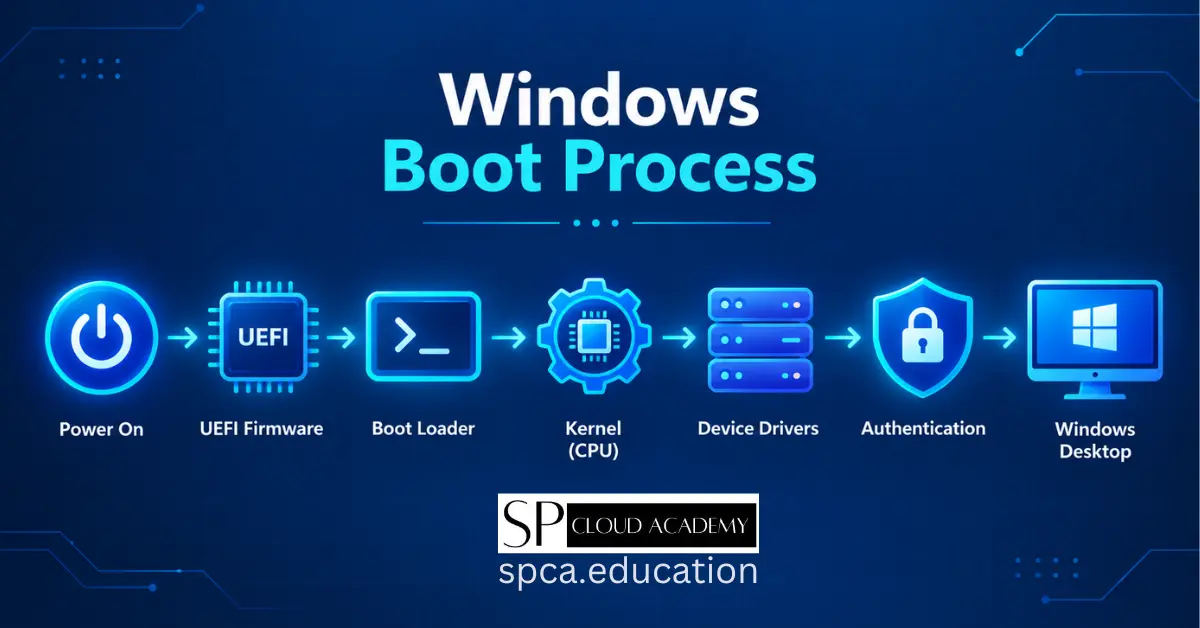
Windows Boot Process: Deep Dive, Troubleshooting & Optimization
-

Windows 11 Advanced Recovery: The Complete Step-by-Step Guide to Fixing Boot Errors, Crash Loops and System Failures
-

Windows 11 Personalization: Turn Your Boring Desktop Into a Masterpiece
-

Master Manage-BDE: The Ultimate Guide to Controlling BitLocker from the Command Line
-

Fix Windows Update Like a Pro: The Ultimate Troubleshooting Guide for All Users
-

Microsoft AI Shell Is Here: How the Admin Command Line Just Became Smarter Than Ever
-

The Hidden Windows Tools That Tech Experts Don’t Want You to Know About (And How They’ll Save Your PC)
-

Windows License Types Explained: Retail vs OEM vs Volume — Which One’s Right for You?
-

Boost Your System Like a Pro: Step-by-Step Windows 11 Performance Monitoring Tips