Introduction: Why Engineering Institutes Need a Dedicated E-Learning Studio
Engineering education has moved decisively beyond the chalkboard. Today’s students expect recorded lectures, simulation walkthroughs, lab demonstrations, and interactive problem-solving sessions they can pause, rewind, and revisit. For institutes that want to compete on quality and reach, building an in-house E-Learning Studio is no longer a luxury reserved for elite universities; it is a practical investment that pays back through better student outcomes, stronger accreditation portfolios, and new revenue streams from online certificate programs.
This guide walks engineering institutes through the entire journey of building an E-Learning Studio: from initial planning and budgeting to room design, equipment selection, software stack, content workflows, and ongoing production management. Whether you’re a department head exploring a single recording room or an academic administrator planning a multi-studio media center, this guide gives you a structured, practical roadmap.
1. Planning Your E-Learning Studio: Strategy Before Hardware
The single biggest mistake institutes make is buying equipment before defining how the studio will actually be used. Planning should answer four core questions before a single camera is purchased.
1.1 Define the Content Mission
Will your E-Learning Studio primarily produce recorded lectures, short explainer videos, lab simulations, hybrid live classes, or a mix of all four? Engineering content often requires whiteboard-style derivations, CAD walkthroughs, and circuit or machinery demonstrations, which demand different camera angles and capture methods than a standard talking-head lecture.
1.2 Identify Your Audience and Delivery Platform
Decide early whether content will live on a Learning Management System (LMS), YouTube, a institute-branded portal, or a blended classroom model. This decision affects video length, resolution standards, captioning requirements, and accessibility compliance.
1.3 Set a Realistic Budget Tier
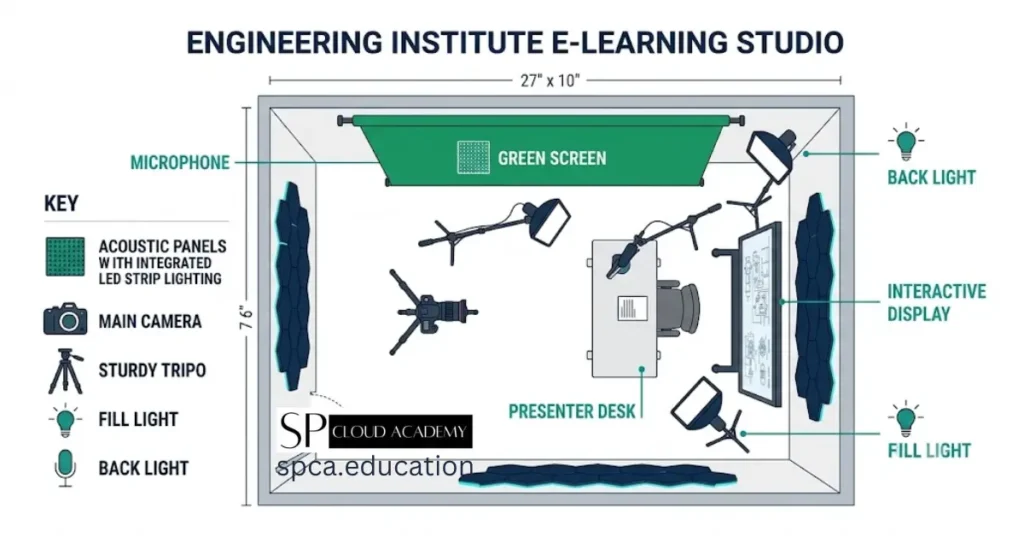
E-Learning Studio budgets generally fall into three tiers. A starter studio (a single room with a camera, lavalier mic, ring light, and a laptop running free editing software) can be built for a modest budget. A mid-tier studio adds a second camera, a green screen, acoustic treatment, and an interactive display. A professional multi-camera studio includes a control room, a teleprompter, lighting rigs, a podcast-style desk, and a dedicated editing workstation.
1.4 Map the Stakeholders
Successful studios involve faculty (content owners), instructional designers (pedagogy), IT (infrastructure and LMS integration), and a media producer (camera, lighting, and editing). Assign clear ownership early so the studio doesn’t sit unused after the ribbon-cutting.
A studio without a content pipeline is just an expensive room. Plan the workflow before you plan the walls.
2. Designing the Physical Space
2.1 Room Selection and Acoustics
Choose a room away from mechanical noise, hallway traffic, and exterior walls where possible. Engineering institutes often have underused seminar rooms or labs that can be converted. Acoustic foam panels, bass traps in corners, and a carpeted or rugged floor dramatically reduce echo, which is one of the most common quality complaints in self-built studios.
2.2 Lighting Setup
A three-point lighting setup, a key light, fill light, and backlight, remains the gold standard for instructor-facing video. LED panel lights with adjustable color temperature (around 5,000 to 5,600 Kelvin for daylight-balanced footage) are affordable and long-lasting. Avoid relying on overhead fluorescent lighting alone, as it creates harsh shadows and an unflattering green or blue cast.
2.3 Backdrop and Branding
Option A: Branded Physical Backdrop
A wall painted in your institute’s brand colors, fitted with the institute logo and subtle engineering-themed graphics, gives every video a consistent, professional identity.
Option B: Green Screen
A chroma-key green or blue screen allows instructors to be composited onto slides, CAD models, or animated backgrounds, which is especially useful for engineering topics that benefit from visual overlays like stress diagrams or circuit schematics.
2.4 The Recording Desk and Display Setup
For technical subjects, an interactive touch display or graphics tablet integrated into the desk lets instructors annotate equations, sketch free-body diagrams, or walk through code in real time, mirroring the in-classroom experience.
3. Essential Equipment Checklist
3.1 Camera and Capture
- A mirrorless or DSLR camera with clean HDMI output, or a high-quality 4K webcam for a starter setup
- A capture card if using an external camera through a computer (for live streaming or screen-and-camera composites)
- A tripod with smooth pan/tilt for instructor-facing shots, plus an overhead mount for desk or lab demonstrations
3.2 Audio
- A lavalier (clip-on) microphone for mobility during whiteboard or lab demonstrations
- A shotgun or condenser microphone on a boom arm for fixed-position recording
- An audio interface or USB mixer to manage levels and reduce background hiss
3.3 Lighting
- Two to three adjustable LED panel lights with softboxes or diffusers
- A ring light for close-up, single-presenter screen-recording sessions
3.4 Display and Annotation Tools
- An interactive flat panel display or a graphics tablet for live equation and diagram annotation
- A secondary monitor for the instructor to view slides and teleprompter notes without breaking eye line
3.5 Computing Hardware
- A capture and editing workstation with a strong multi-core processor, at least 32GB RAM, and a dedicated GPU for faster video rendering and export
- Reliable external or networked storage for raw footage backups
4. Software Stack for an E-Learning Studio
4.1 Recording and Screen Capture
Tools like OBS Studio (free and open-source) allow simultaneous camera, screen, and slide capture with scene switching, which is ideal for engineering content that blends a talking head with code editors, CAD software, or simulation tools.
4.2 Video Editing
Editing software should support multi-track timelines, chroma keying, and captioning. Options range from free tools like DaVinci Resolve to professional suites like Adobe Premiere Pro, depending on your budget tier and editor skill level.
4.3 Interactive and Assessment Tools
Beyond video, an E-Learning Studio pipeline benefits from quiz and assessment tools (interactive HTML quizzes, H5P modules, or LMS-native assessments) that turn passive video content into active, measurable learning experiences.
4.4 LMS and Distribution
Moodle, Canvas, and similar platforms remain common in engineering institutes, often integrated with video hosting tools like Panopto or self-hosted streaming servers to manage bandwidth and access control.
5. E-Learning Studio Functional Architecture
Before wiring a single cable, it helps to see the studio as a system rather than a room full of gear. The functional diagram below maps how an engineering institute’s E-Learning Studio actually works end to end: from raw capture devices, through production and recording, into outputs, content management, delivery, and the support systems that keep everything running.
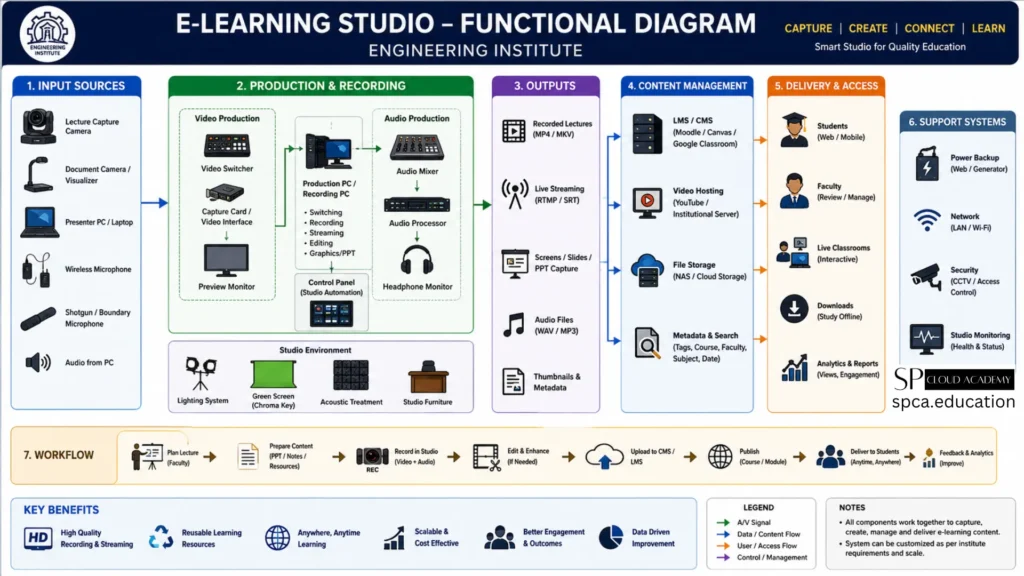
Figure: E-Learning Studio — Functional Diagram, Engineering Institute
5.1 Input Sources
Every recording begins with capture devices: a lecture capture camera, a document camera or visualizer for handwritten work, the presenter’s PC or laptop for slides and software demos, plus wireless, shotgun, or boundary microphones and direct audio from the PC. Together these inputs feed everything downstream.
5.2 Production and Recording
This is the engine room of the studio, split into video production, audio production, and a control panel for studio automation. The video chain runs from a video switcher through a capture card or video interface into the production and recording PC, with a preview monitor for the operator. The audio chain runs from a mixer through an audio processor to a headphone monitor, so levels can be checked in real time. The production PC itself handles switching, recording, streaming, editing, and graphics or PPT overlays, while a studio environment of lighting, a green screen, acoustic treatment, and purpose-built furniture surrounds the whole setup.
5.3 Outputs
A single recording session can generate multiple deliverables at once: recorded lecture files (MP4/MKV), a live stream over RTMP or SRT, captured screens, slides, or PPT decks, standalone audio files (WAV/MP3), and automatically generated thumbnails and metadata.
5.4 Content Management
Outputs flow into a content management layer built around four pillars: the LMS or CMS (such as Moodle, Canvas, or Google Classroom), a video hosting platform (YouTube or an institutional server), file storage (NAS or cloud), and a metadata and search layer that tags every asset by course, faculty, subject, and date so content stays discoverable as the library grows.
5.5 Delivery and Access
From content management, material reaches its real audience: students on web or mobile, faculty reviewing or managing their own courses, live interactive classrooms, downloadable files for offline study, and analytics and reports that track views and engagement over time.
5.6 Support Systems
Running quietly behind all of this are the support systems that keep a studio reliable: power backup, network infrastructure, security (CCTV and access control), and studio health monitoring. These rarely get attention in planning conversations, but they are exactly what prevents a recording session from being lost to a power cut or a dropped connection.
5.7 The Seven-Step Workflow
The diagram’s workflow band distills the entire studio into a single repeatable sequence: faculty plan the lecture, prepare content such as slides, notes, and resources, record video and audio in the studio, edit and enhance the footage where needed, upload it to the CMS or LMS, publish it as a course module, and finally deliver it to students anywhere, anytime, before closing the loop with feedback and analytics that improve the next cycle.
The real value of the diagram isn’t the icons; it’s seeing that capture, production, output, management, delivery, and support are one connected system, not six separate purchases.
6. The Content Production Workflow in Practice
A repeatable workflow is what separates a studio that produces consistent, high-quality content from one that produces a handful of videos and then goes quiet. The following five-stage workflow works well for engineering institutes.
- Pre-Production: Faculty submit a lesson outline and slide deck to the instructional design team, who review pacing, learning objectives, and accessibility needs.
- Script and Storyboard: For complex topics like thermodynamics cycles or control systems, a simple storyboard maps which visuals, animations, or live demonstrations accompany each talking point.
- Recording: The instructor records in the studio following a checklist for lighting, audio levels, and framing, with a producer present to manage retakes and technical quality.
- Post-Production: Editors trim, color-correct, add captions, insert lower-thirds and diagrams, and export in LMS-compatible formats.
- Publishing and Feedback: Content is uploaded to the LMS with metadata and quizzes attached, and engagement analytics are reviewed to refine future recordings.
6.1 Building a Production Calendar
Treat your E-Learning Studio like a small media operation. A shared production calendar that tracks each course module’s stage, from scripting through publishing, prevents bottlenecks, especially during peak semester deadlines when multiple faculty members compete for studio time.
7. Accessibility, Quality, and Compliance
Engineering content often includes dense visual information, equations, schematics, and graphs, which makes accessibility planning essential rather than optional.
- Add accurate closed captions and downloadable transcripts for every video
- Use sufficient color contrast and avoid relying on color alone to convey information in diagrams
- Keep individual video segments short (8 to 12 minutes) to support better retention and easier mobile viewing
- Maintain consistent audio levels across all uploads using a loudness standard during the editing stage
8. Staffing and Skills for a Sustainable Studio
Even a small E-Learning Studio benefits from at least a part-time producer or instructional technologist who understands both the technical workflow and basic pedagogy. Larger institutes often build a small team.
- A studio coordinator who manages bookings, scheduling, and equipment maintenance
- A video editor who handles post-production and captioning
- An instructional designer who reviews content for learning effectiveness and accessibility
- Faculty champions in each department who model good on-camera teaching practices for their peers
Training faculty on basic on-camera presence, pacing, and how to use the interactive display goes a long way toward reducing re-shoots and improving final content quality.
9. Budgeting Snapshot
The table below offers a general budgeting reference for the three common studio tiers. Actual costs vary by region, currency, and vendor, so use this as a planning framework rather than a fixed quote.
| Tier | Core Equipment | Best Suited For |
| Starter | 4K webcam, lavalier mic, ring light, free editing software | Single-faculty pilot projects, screen-recorded lectures |
| Mid-Tier | DSLR camera, two-light kit, green screen, boom mic, paid editing suite | Departmental studios producing regular course content |
| Professional | Multi-camera setup, control room, interactive display, dedicated editing workstation | Institute-wide media centers and accredited online programs |
10. Common Mistakes to Avoid
- Buying expensive cameras before fixing the room’s acoustics, which has a far bigger impact on perceived quality
- Skipping a content workflow and instructional design review, leading to disorganized, low-engagement videos
- Underestimating storage and backup needs for raw 4K footage
- Failing to train faculty on basic on-camera presentation skills
- Treating the studio as a one-time project instead of an ongoing production operation with a calendar and budget
Conclusion: Building a Studio That Lasts
A well-planned E-Learning Studio gives engineering institutes the ability to produce consistent, high-quality, and accessible learning content at scale. The technology choices matter, but the real differentiator is a clear production workflow, trained staff, and a content strategy aligned with how students actually learn. Start with a realistic budget tier, get the room acoustics and lighting right, and build a repeatable pipeline from script to LMS upload. Done well, your E-Learning Studio becomes one of the most valuable long-term assets your institute owns.
See Also
-
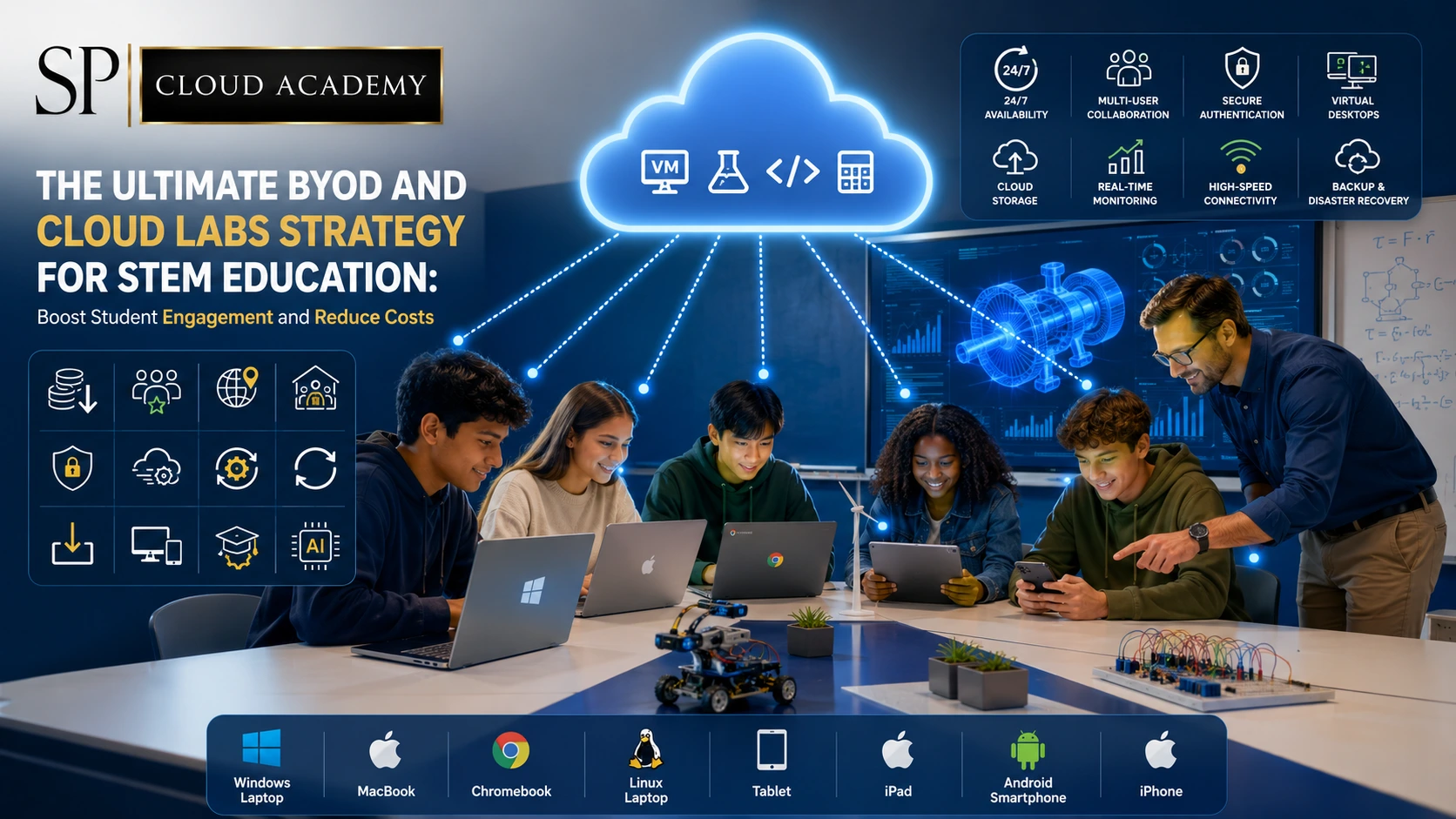
The Ultimate BYOD and Cloud Labs Strategy for STEM Education: Boost Student Engagement and Reduce Costs
-
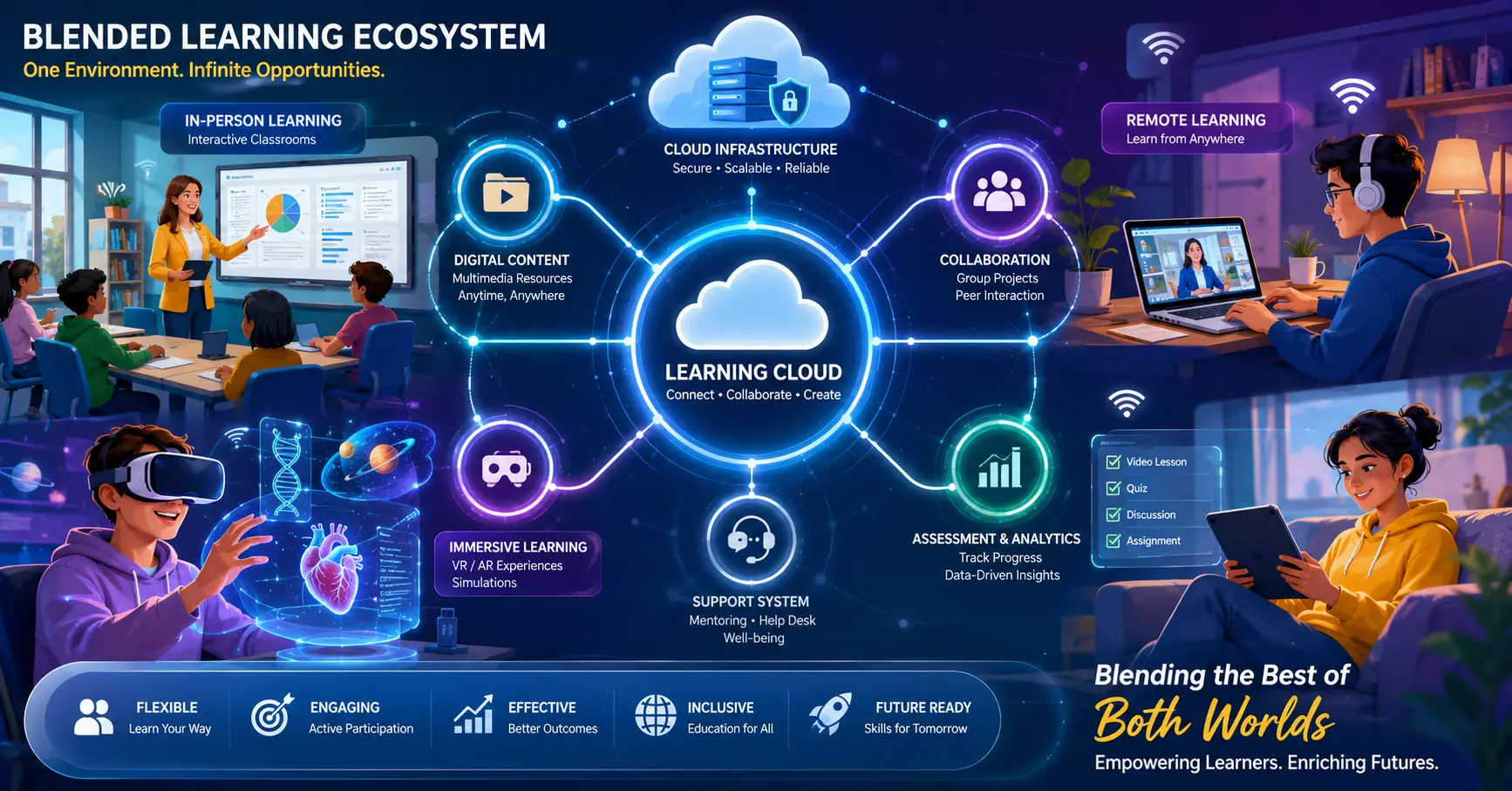
THE COMPLETE BLENDED LEARNING ECOSYSTEM
-

The Ultimate Guide to Developing an E-Learning Studio for Engineering Institutes: From Planning to Production
-

How Smartphones Are Transforming Blended Teaching into a Classroom Superpower!
-

From Desktop to Cloud: The Revolutionary Shift That’s Making Physical Computing Labs Obsolete in 2025
-

The Microsoft Education Tool That Teachers Are Calling a ‘Game-Changer’ (And It’s Completely Free)
-

Unlock the Power of AI in Teaching: Google’s Top Tools You Must Try
-

WhatsApp for Education: Step-by-Step Community Setup and Admin Secrets Revealed
-
Master Google Classroom Like a Pro: The Complete Training Guide for Teachers